
Managing Devboxes
Listing, stopping, deleting, configuring defaults, and monitoring resource usage.
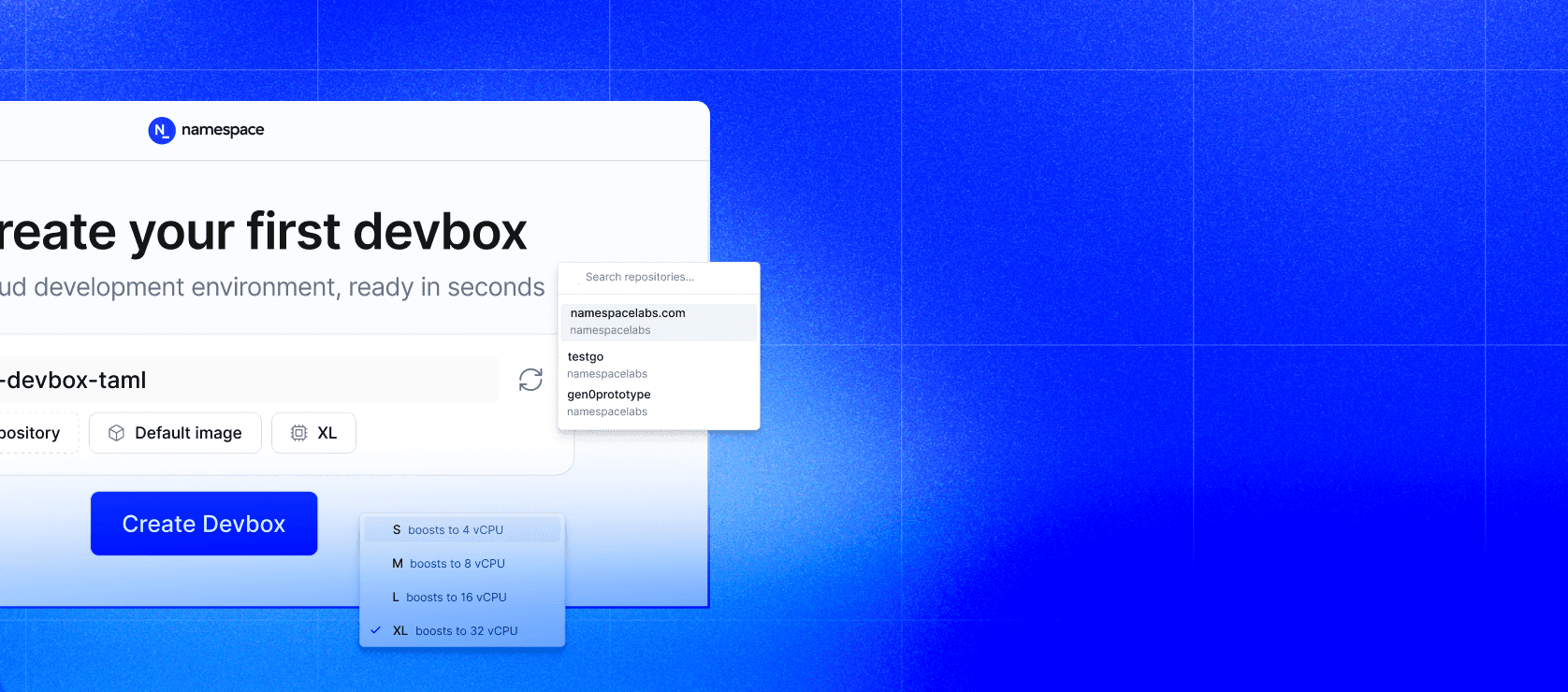
Machine Sizes
Both the CLI (--size) and the dashboard provide the same size options:
| Size | CPU | Memory |
|---|---|---|
| S | Burst to 4 vCPU | 8 GB |
| M | Burst to 8 vCPU | 16 GB |
| L | Burst to 16 vCPU | 32 GB |
| XL | Burst to 32 vCPU | 64 GB |
vCPU counts represent burstable capacity. Your workspace policy may restrict which sizes are available.
Listing Devboxes
Via the CLI:
$devbox list
By default this shows only your devboxes. Use --show-all to see all devboxes in the workspace.
Output as JSON for scripting:
$devbox list -o json
Via the Dashboard:
The Devboxes dashboard shows all your devboxes grouped by repository. Toggle between viewing your own devboxes or all workspace devboxes.
Starting & Stopping
Devboxes start automatically when you connect via devbox ssh, devbox open-ide, or from the dashboard.
To stop a running devbox:
Via the CLI:
$devbox shutdown
This presents an interactive picker. You can also use the alias devbox stop.
Via the Dashboard:
Click the stop button on any running devbox in the dashboard or from the devbox detail page.
Stopped devboxes retain all persistent storage. They resume in seconds on the next connection.
Idleness & Auto-Stop
Control how long a devbox stays running after becoming idle. Available timeouts: 15 min, 30 min, 1 hour, 4 hours, or 8 hours.
CLI:
$devbox create --auto_stop_idle_timeout=1h
Dashboard: Expand the Advanced section in the create dialog to configure the idle timeout.
How idleness is detected
A devbox is considered active (not idle) if any of the following are true:
- There is an active SSH connection, whether through
devbox sshor a native SSH client. This includes SSH connections kept open by IDEs. - A session was created within the last 15 minutes.
- Files exist under
/.namespace/tasks, which indicate ongoing tasks and can be created by users.
The idle timeout countdown only applies once none of the conditions above are present.
Deleting
Deleting a devbox permanently removes it and its associated persistent volume.
Via the CLI:
$devbox delete my-devbox
You'll be prompted to confirm by typing the devbox name. Skip the confirmation with --force:
$devbox delete my-devbox --force
Without a name argument, an interactive picker is shown.
Via the Dashboard:
Delete a devbox from its context menu in the dashboard.
Volume Size
Override the default persistent volume size:
$devbox create --volume_size_gb=300
Creating from a Spec File
Define your devbox configuration in a file and create it non-interactively with --from:
$devbox create --from devbox.yaml
This skips all interactive prompts and creates the devbox exactly as described in the spec file.
Spec files can be JSON (.json), YAML (.yaml / .yml), or TOML (.toml).
Spec file reference
| Field | Description |
|---|---|
| Exact devbox name (required, mutually exclusive with name_prefix). |
| Prefix for an auto-generated name — a random suffix is appended (required, mutually exclusive with name). |
| Image name or reference to use as the base environment (required). |
| Machine size: S, M, L, or XL (required, case-insensitive). |
| Git repository to clone into the devbox. |
| Target site. If omitted, the closest site is selected automatically. |
| Persistent volume size in GiB. |
| Idle timeout duration (e.g. 30m, 1h). |
| List of sessions to create automatically (see below). |
Each entry in sessions has:
| Field | Description |
|---|---|
| Session name (required). |
| Command to run in the session (required). |
Example
name: my-devbox
image: default
size: M
repository: github.com/my-org/my-repo
volume_size_gb: 100
sessions:
  - name: server
    command: npm run dev
  - name: tests
    command: npm test -- --watch
Workspace Defaults
Workspace admins can set default values applied to all newly created devboxes. Navigate to the Defaults page in the dashboard to configure:
- Instance Size: default CPU and memory allocation
- Image: default base image
- Git Repository: default repository to clone
- Access Mode: private (just you) or workspace-wide (shared with all members)
- Idle Timeout: how long devboxes stay running when idle
When a workspace policy is active, policy-enforced values take precedence and are shown as locked in the UI.
Git Configuration
Configure the git author name and email used across your devboxes from the dashboard. Click your name in the devboxes header to open the git configuration dialog.
This sets user.name and user.email for git operations in all your devboxes.
Setting Up GitHub CLI
Forward your local gh CLI authentication to a devbox:
$devbox setup-github my-devbox
This transfers your local GitHub token and configures gh auth and gh auth setup-git on the devbox, enabling gh commands and HTTPS git authentication.
Resource Monitoring
The dashboard shows live resource metrics for running devboxes:
- CPU utilization: overall and per-core usage with historical graphs
- Memory utilization: current usage percentage with history
- Network latency: ping indicator showing connection quality to your devbox's site
These metrics are streamed in real time from the devbox detail page.
Site Latency
Devboxes are automatically created in the site closest to you. To manually check latency to available sites:
$devbox site-latency
The dashboard measures site latency automatically and selects the best site when creating a devbox.
Self-Update
Keep the Devbox CLI up to date:
$devbox update
Next Steps
Remote Development → Connect to your devbox via SSH, VS Code, Cursor, Zed, or JetBrains.
Sessions → Persistent terminal sessions that survive disconnections and devbox restarts.
Custom Images → Build custom base images with your tools and runtimes pre-installed.