

Built for Apple Development
The platform includes native support for the complete Apple development ecosystem, including Xcode, iOS, and Metal. Our macOS environment is optimized for Apple development workflows:- Fast access to the latest Xcode and macOS versions
- Multiple supported OS versions: Sonoma (14), Sequoia (15), Tahoe (26) and Golden Gate (27)
- Use shape selectors to specify desired base image.
- Build and test native iOS and macOS applications
- Support for up to 12 vCPU and 56GB of RAM
VNC Integration
Namespace supports visual debug access which is invaluable for debugging GUI applications, testing user interfaces, and investigating display-related issues. Access your Mac runners through Remote Display (VNC) directly from the Namespace dashboard.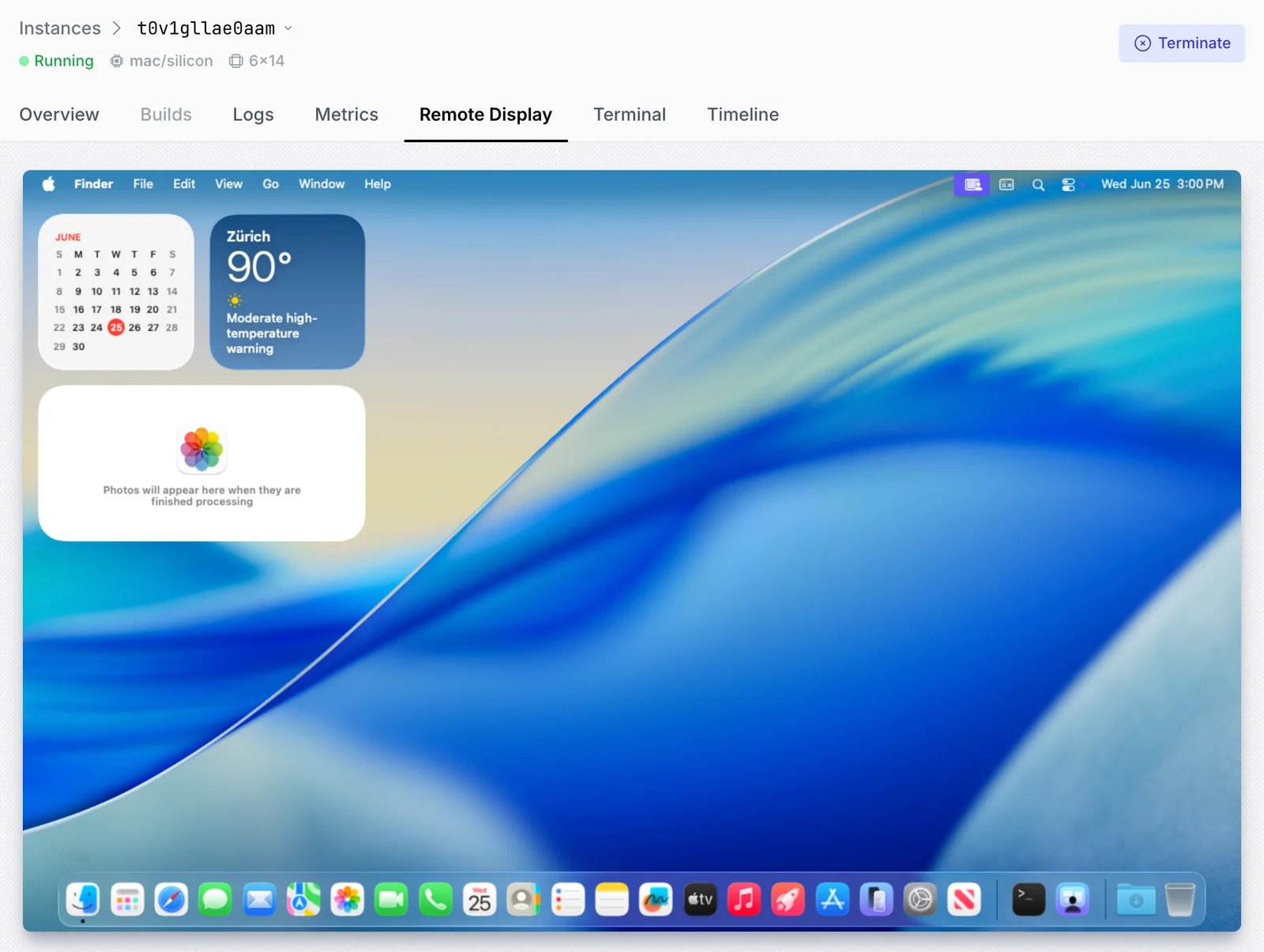
Running Custom Applications
You can run your own applications directly on macOS instances using the Namespace Compute API. An instance is created with one or more applications, each pointing at a container image that carries your binary and the command to execute. Themacrun example
demonstrates the full flow:
- Build a
darwin/arm64binary (CGO_ENABLED=0 GOOS=darwin GOARCH=arm64 go build). - Package it into a container image and push it to the Namespace Container Registry.
- Create a macOS instance with an
InstanceShape(Os: "macos",MachineArch: "arm64") and anApplicationRequestreferencing the pushed image, theCommandto run, and itsArgs. - Wait for the instance to become ready.
Base Image Selection
When starting a macOS workload on Namespace you can define requirements for the desired base image in form of selectors. The selectors are a sequence of name-value pairs passed to instance creation request. Note that there may be multiple selectors for the same name (all of them will try to be satisfied).Available Selectors
These are the available selectors and options:
Using these selectors you can identify the following images:
macos.version=14.x
: macOS Sonoma
macos.version=15.x
: macOS Sequoia with Xcode 16
macos.version=15.x,image.with=xcode-26
: macOS Sequoia with Xcode 26 and betas
macos.version=26.x
: macOS Tahoe with Xcode 26
macos.version=26.x,image.with=xcode-beta
: macOS Tahoe with Xcode 26 beta
macos.version=27.x
: macOS Golden Gate with Xcode 27
An image can include multiple Xcode versions under
/Applications/Xcode_*.app. Image selectors choose
the base image, which determines the installed Xcode versions and the default. They do not select a
specific installed patch version. The runner images page
lists the Xcode versions included in each image. You can also list the versions on a runner and use
xcode-select to switch to the one you need:How to Use
The selectors can be specified on the command line whennsc CLI is used:
macOS Image Updates
Namespace team continuously makes changes to macOS runner images to keep the software up-to-date and add new Xcode versions as soon as Apple releases them. To get notified about upcoming changes and releases subscribe to the RSS feed: Base Images UpdatesOS Simulators
macOS instances ship with the Apple platform simulators, so you can build and test across Apple’s operating systems without physical devices. The available simulators are:- iOS
- tvOS
- visionOS
- watchOS
The latest Duo simulator is only available on macOS Tahoe 26.6.2 with Xcode 27.1-Beta.To see exactly which simulators and device types your macOS instance offers, run the following in your instance:
Xcode 26 Compilation Cache
Xcode 26 introduces a new Compilation Cache feature that significantly speeds up build times by reusing compiled outputs across checkouts and builds. This feature can be used in conjunction with Namespace Cache Volumes to leverage the compilation cache across CI runs.Xcode Caching on GitHub Runners
Xcode caching is fully integrated into Namespace GitHub Runners:- Turn on caching for your runners via Runner Profile or runner labels.
- Add
namespacelabs/nscloud-cache-actionstep to your workflow to configure Xcode to use the cache (also SwiftPM and CocoaPods caches):
CompilationCacheMetrics section in the logs that
xcodebuild outputs: