

Getting started
To run your workflows on Namespace, you need to connect Namespace with your GitHub organization. Namespace runners offer a high degree of customization and unique capabilities. You can configure and adjust settings in the Namespace UI through a profile. Start off by selecting your target OS / architecture and picking an optimal shape. Then, all you need to do is a one-line change to your workflow definition.Connect your GitHub organization to Namespace
Open the Dashboard to connect your GitHub organization.
Create a profile
- Open the Dashboard and click “New Profile”.
- Specify a name. The name will be part of the
runs-onlabel in your workflow file. - Select if you want to run on Linux AMD64, Linux ARM64, Windows or macOS.
- Pick a resource shape. You can change the shape later to find the best fit.
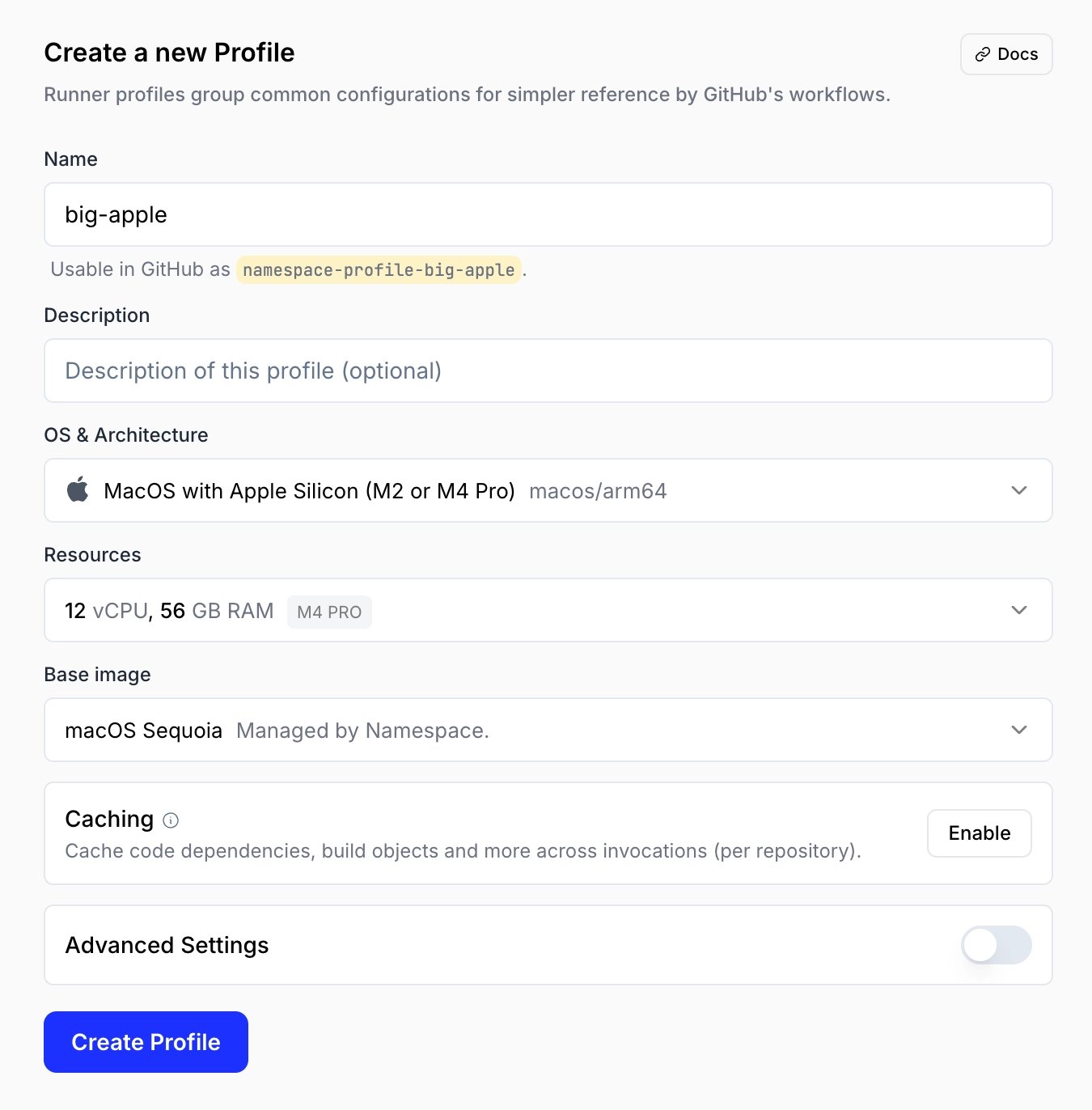
- Confirm by pressing “Create Profile”.
Choose a resource shape
Namespace Runners are powered by Namespace Compute which uses best-in-class hardware for every platform:- Linux AMD64 runs on high-performance AMD EPYC CPUs.
- Linux ARM64 supported by AmpereOne (high memory configurations), and Apple M4 Pro and M5 Max.
- Windows AMD64 runs on high-performance AMD EPYC CPUs.
- macOS ARM64 Apple M5 Max (or M4 Pro on some configurations).
Migrating your existing setup
When moving your workflow to Namespace, you should see immediate performance benefits. You can speed up your workflows further by switching to more Namespace features.Faster Docker builds
No configuration changes required. The fastest way to speed up your Docker builds is to simply switch to Namespace runners. Remote Builders are enabled by default and will immediately accelerate your builds. If your workflow includesdocker/setup-buildx-action, remove it to prevent overriding Namespace’s configuration:
Adopt Cache Volumes
Cache Volumes are Namespace’s high-performance caching solution that persists data across GitHub Actions runs. For a deep dive, see the caching guide.1
Enable caching
Go to the desired Runner Profile and enable caching. For most workflows, enabling all caching options leads to the best performance.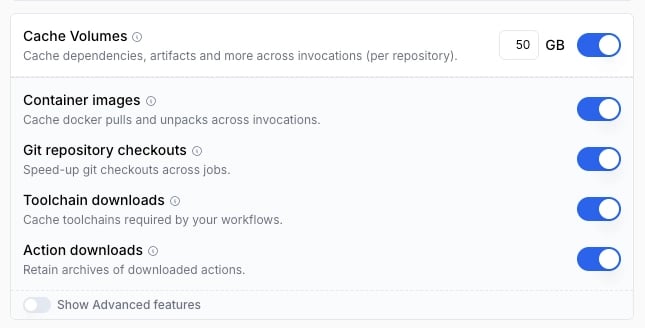
2
Faster git checkouts
After enabling Git repository checkouts, replace mentions of The main difference over
actions/checkout with nscloud-checkout-action:actions/checkout is built-in git mirror support, which enables automatic caching. See the action reference for all options.3
Adopt framework caching
nscloud-cache-action supports many popular frameworks natively. Add it to your workflow and select the frameworks you use:4
Migrating from actions/cache
The action Cache Volumes perform well when used frequently.
While onboarding to cache volumes, you may see a higher than usual amount of cache misses before merging your change to main.Note:
nscloud-cache-action can also be used to cache arbitrary files or directories.
If you are using actions/cache today, typically replacing it with nscloud-cache-action provides strictly better performance by skipping remote file transfers.nscloud-cache-action does not support manual partitioning (e.g. via cache keys); cache uses are shared across all users of a particular profile, including main and branch runs.
However, you can protect caches to only be writable by certain branches (e.g. by the main branch).Enable Build System integrations
Namespace runners accelerate your Docker builds out of the box. If you use Bazel, Turborepo, Pants, or Moonrepo, you can enable native caching integrations for your build system. See Build System Integrations for the full list. Don’t see your build system? Reach out to our integrations team to learn about upcoming releases and join the early access.Next steps: optimize your workflows
Enhance your CI/CD pipeline with more Namespace tools. Custom Base Images → Speed up workflows by pre-installing your dependencies and tools in custom runner images. Debugging → Interactive access, remote display, observability, and queue-time analysis for troubleshooting workflows. Runner Controls → Job ordering, privileged workflows, swap space, Tailscale, access levels, and containerized job access.Guides
Optimizing Usage → Use the insights dashboard to monitor workflow performance, track resource usage, and identify opportunities to reduce costs and improve performance. Looking for the runner label grammar or override syntax? See Runner Labels.App Permissions
You can install the app on either a personal account or an organization. See GitHub’s docs on app permissions and installing an app. When you connect the Namespace Runners app, it requests the following permissions:Actions: Read and writeAdministration: Read and writeOrganization self-hosted runners: Read and writeMetadata: Read(granted automatically by GitHub)