

Getting Started
Create a preview cluster
-
Using the CLI, log into your workspace.
If you’re accessing Namespace from a cloud provider or your CI platform, we recommend to set up workflow federation instead.
-
Create a Kubernetes cluster to host your preview.
Output
Apply your Kubernetes configuration
-
Point your local
kubectlto the preview cluster. -
Deploy your application to the preview.
How it works
Namespace preview clusters build on Namespace Compute to deliver interactive access to a flexible, isolated test environment. When creating an instance, Namespace provisions a ready-to-use Kubernetes cluster in it and provides seamless access to the Kubernetes API. You can deploy and expose your applications using your existing tooling. Namespace will generate public, authenticated ingress URLs using managed TLS certificates, whether you use a Namespace-provided app domain, or employ custom domain configurations.
Kubernetes API access
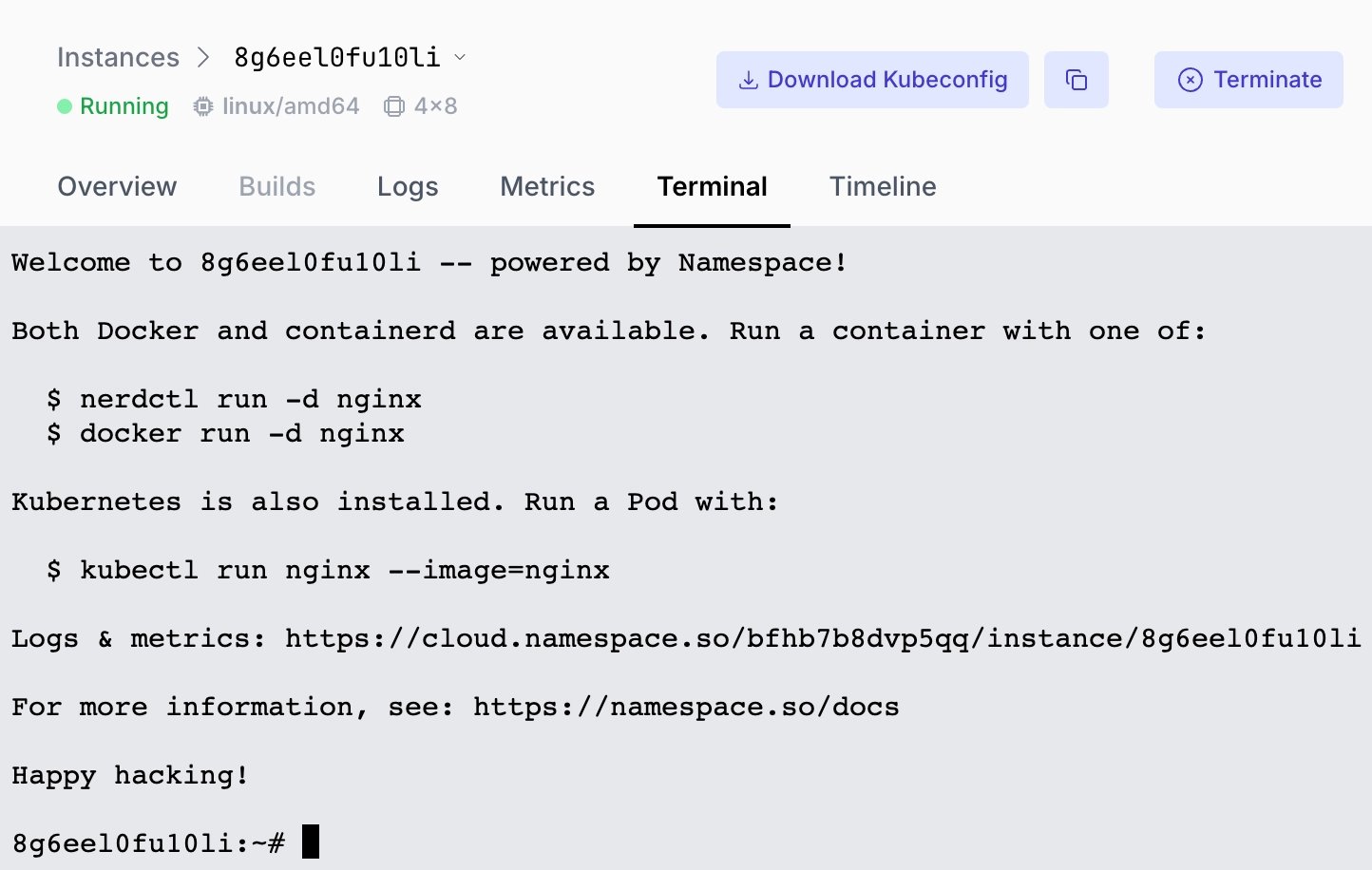
Namespace previews provide full access to the Kubernetes API under test. To configure your localkubectl client to access the remote test environment, use our CLI to produce and apply a kubeconfig.
Output
kubectl integration:
Monitoring and Debugging
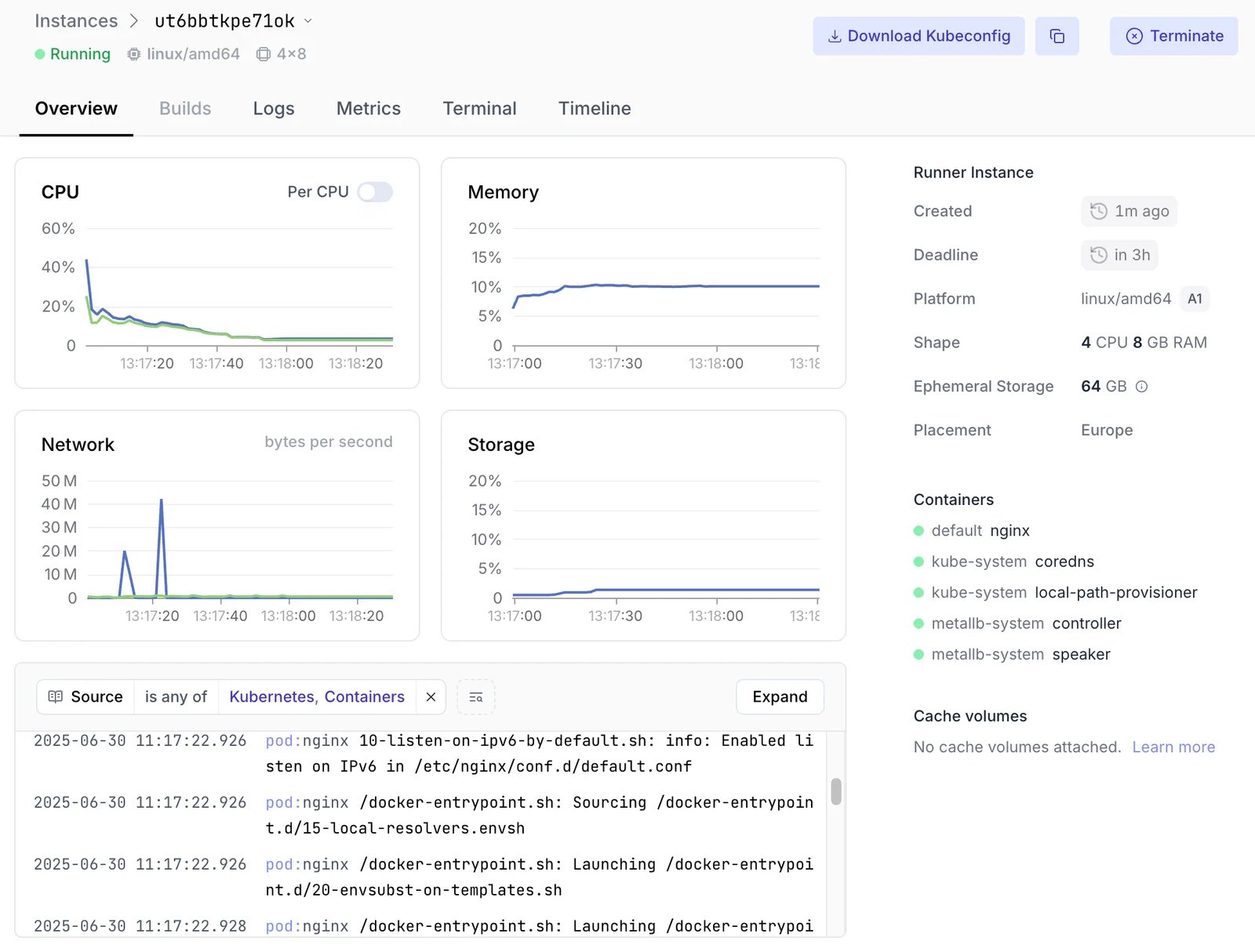
By building on Namespace Compute, you directly benefit from its comprehensive observability features providing deep insights into preview environment performance and behavior.- Real-time Logging Access centralized logs from all pods, from the CLI or the Dashboard.
- Performance Monitoring Track resource utilization and network performance.
Wildcard Ingresses
For complex applications requiring multiple endpoints or dynamic routing, Namespace supports wildcard ingress configurations. Wildcard ingresses excel in scenarios requiring microservice architectures with dynamic service discovery and when testing API gateways managing multiple backend services.Enable wildcard support
Create a cluster with wildcard ingress capability.This outputs the ID of the created cluster, e.g.: 072higp5dg0bg
*.<instance-id>.<region>.namespaced.app
Automatic Previews
Namespace’s Kubernetes Ingress Manager automates preview creation through service annotations, eliminating manual exposure commands and integrating preview generation directly into your deployment pipeline.Enable the ingress manager
Create a preview cluster, enable the ingress manager and point your local Outputs the ID of the created cluster, e.g.: dr9flh12238ukSave the generated kubeconfig path, then configure
kubectl to it.Output
kubectl to use it.Annotation-based service exposure
Control preview generation through Kubernetes service annotations: