

SSH
For quick interactive work, and for tools that connect over SSH.
Session
For work that should outlive your connection, including a coding agent.
Open a Shell with SSH
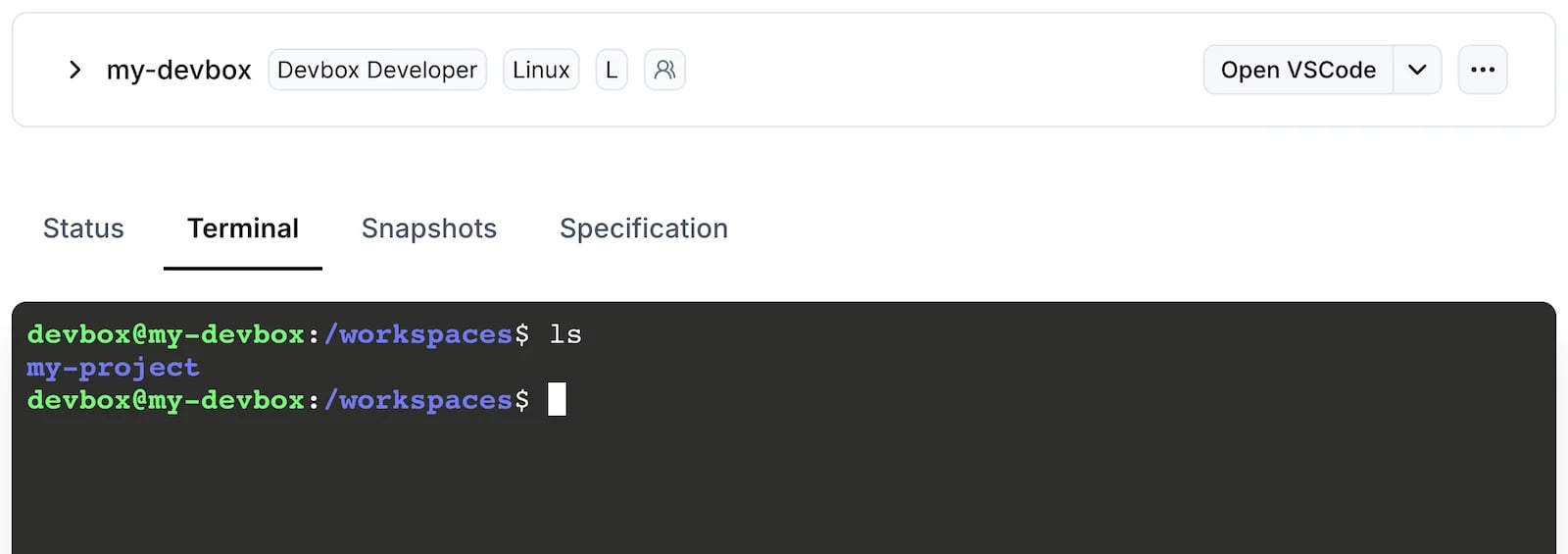
devbox ssh opens an interactive shell on the Devbox. The connection is tunneled through the Namespace API, so the Devbox needs no public IP address or open port.
- CLI
- Dashboard
Omit the name to pick a Devbox from a list:Or name it to connect straight away:
Keep Work Running in a Session
A session is a named terminal that runs on the Devbox. Closing your terminal only detaches you from it: the shell and everything running in it keep going, with their output, until you reconnect. Sessions are tmux sessions managed by the Devbox.- CLI
- Dashboard
Connect to a session by name. The session is created the first time you use the name:Run the same command later to pick up where you left off. Run
devbox session connect with no arguments to choose a Devbox and a session from a list.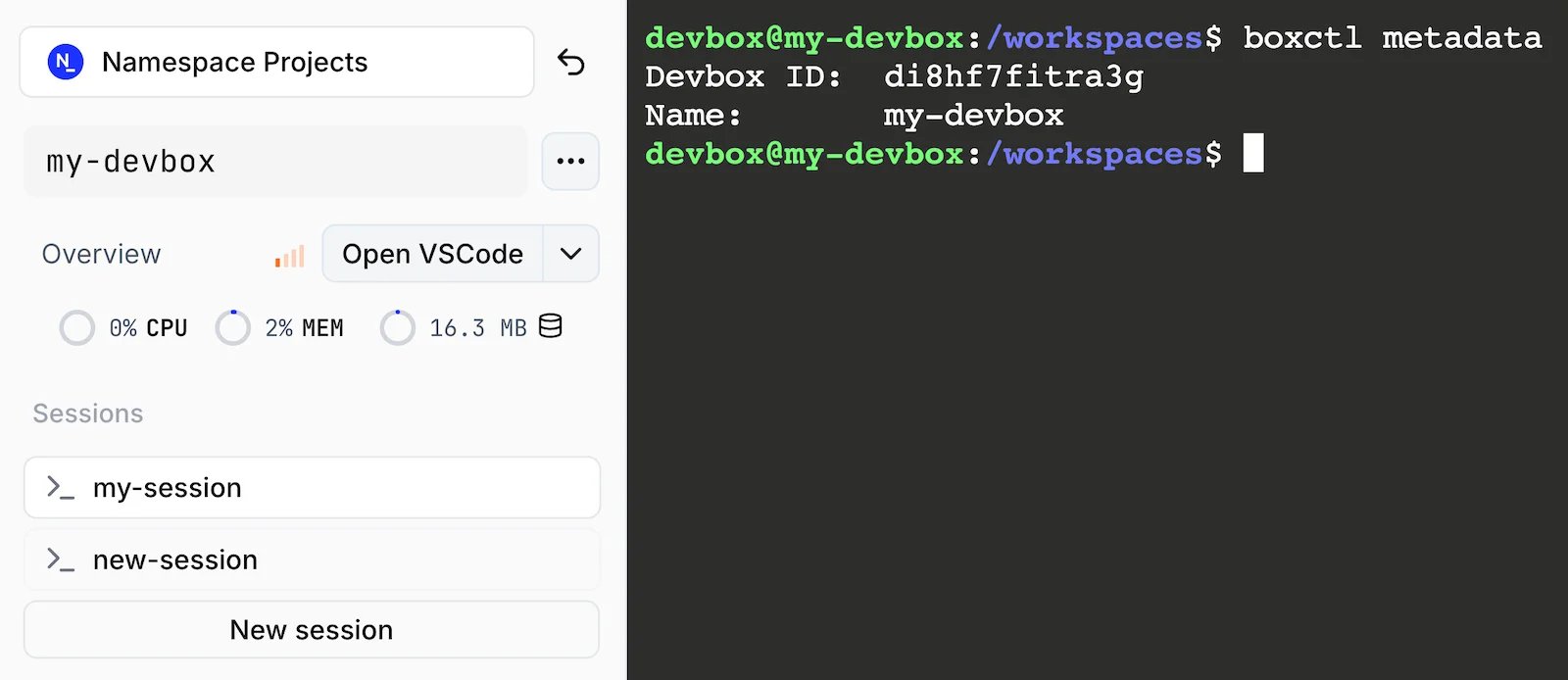
server for a dev server, tests for a test watcher, and shell for everything else. See devbox session to list sessions.
Run a Coding Agent in a Session
A coding agent that works on the Devbox for a long stretch is the clearest case for a session. Over SSH, the agent stops when your laptop sleeps or your network drops. In a session, it carries on without you, and you can reconnect to see what it has done or give it the next task.Start the agent
Start your agent in the session, for example
claude, codex, or amp, and give it a task.A session counts as activity for only 15 minutes after it is created, so a Devbox can stop for being idle while an agent is still working in it. Ask the agent to create a task marker while it works. See Running long tasks.
Choose Between SSH and a Session
Use SSH for short interactive work, for piping local data into a command, and for tools that need an SSH connection. Use a session for anything you want to come back to: a dev server, a long build, or a coding agent.
To run a command without a terminal at all, and keep its output to read later, use
devbox exec instead. For a dev server or another process that should restart when it fails and start again every time the Devbox boots, create a service.
Next Steps
Executing Commands
Run commands without a terminal and read their output later.
IDEs
Open a Devbox in VS Code, Cursor, JetBrains, or Zed.
Running Long Tasks
Keep a Devbox running while a build or an agent works.