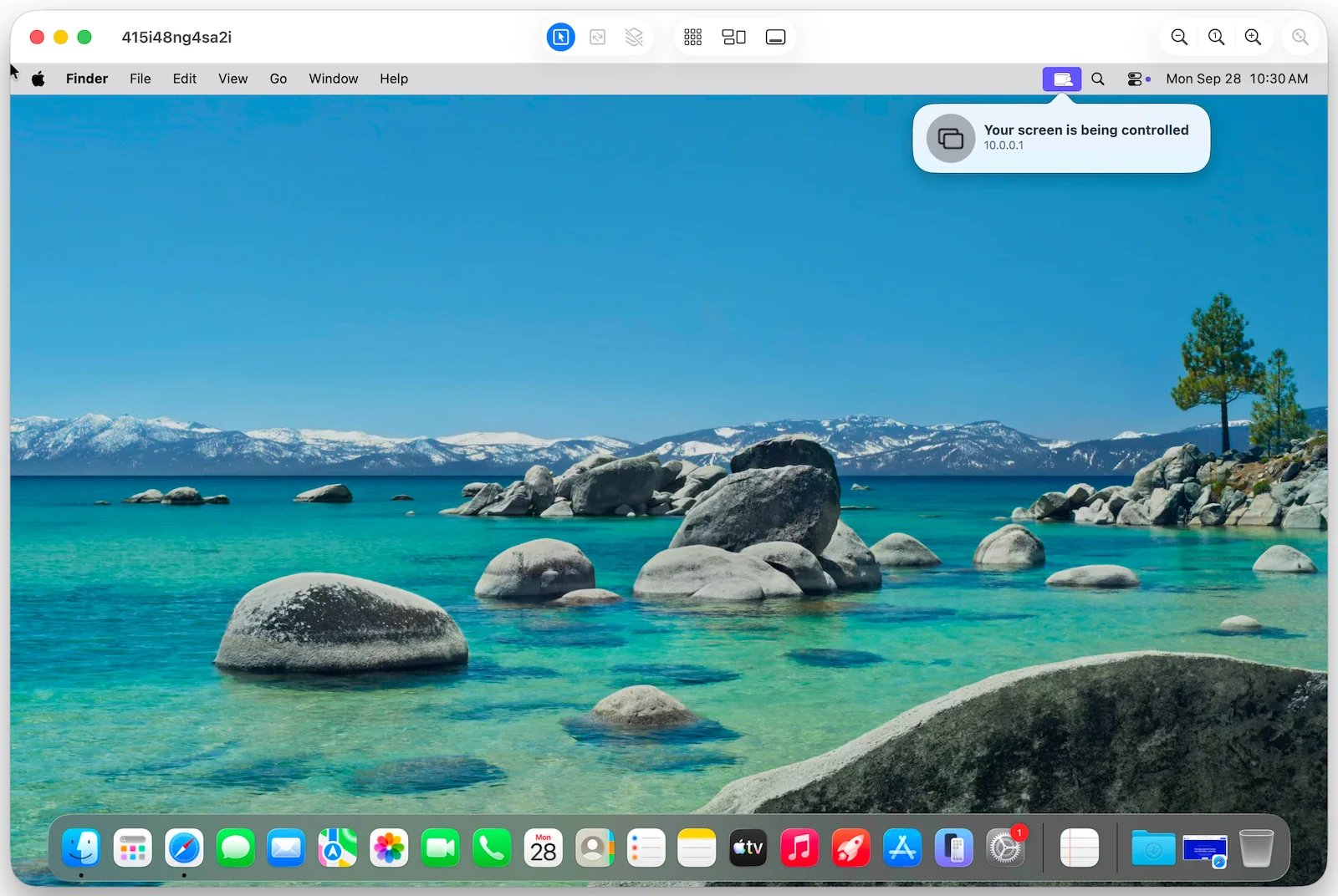
Some work on a Mac needs the screen: trying an app in the iOS Simulator, checking how a page renders in Safari, answering a system dialog, or using a tool that has no command line. A macOS Devbox has a full desktop for this. Open it in a VNC client on your machine to see it live and use it with your own mouse and keyboard.
The desktop is available on macOS Devboxes only. See Create a Devbox.

Open the Desktop

devbox desktop connect opens the desktop of a Devbox in your local VNC client:
Omit the name to pick a Devbox from a list.
The connection is forwarded through a local port, so the Devbox needs no public address or open port. It stays open until you close the VNC client or press Ctrl+C in the terminal.
A VNC client window showing the macOS desktop of a Devbox
Click and type in the window to use the desktop as you would a local Mac. Apps you start keep running on the Devbox after you close the VNC client.

Use a Different VNC Client

Pass --no_open to print the connection details instead of opening a client:
Connect your VNC client to the printed address with the printed credentials.

Computer Controls

Capture, click, and type on the desktop from a script or an agent.

devbox desktop

Every devbox desktop connect option.
Last modified on October 16, 2026