

Display controls are available on macOS Devboxes only. See Create a Devbox.
Take screenshots
Capture the full screen as a PNG. The screenshot is 2560 by 1600 pixels.- CLI
- TS SDK
devbox desktop click uses. Pass --file - to write the PNG to stdout instead.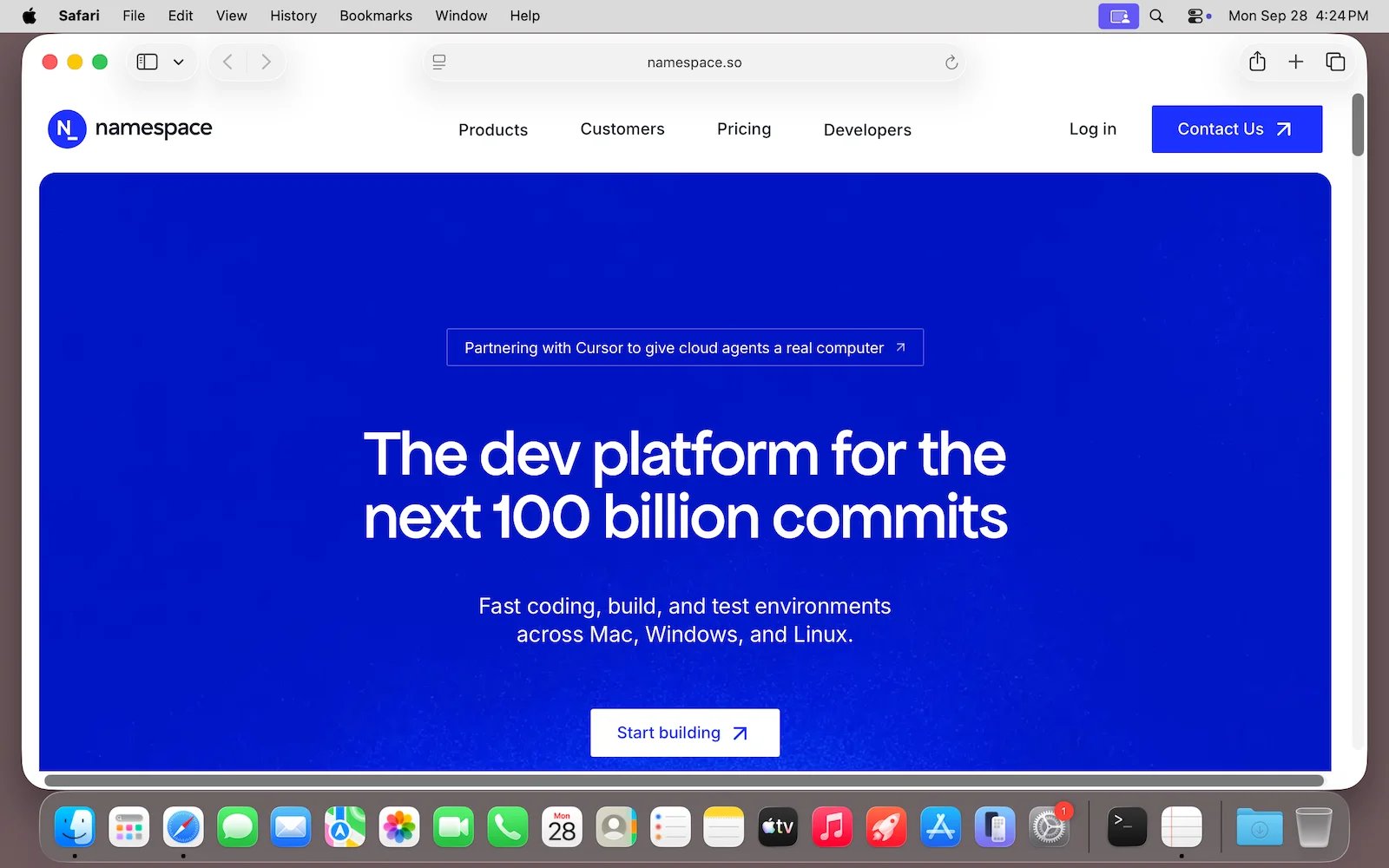
Click the mouse
Click at a point on the screen. Coordinates are in screenshot pixels, with(0, 0) at the top-left corner, so a point read from a screenshot can be passed as is.
- CLI
- TS SDK
--button right or --button middle to click another mouse button.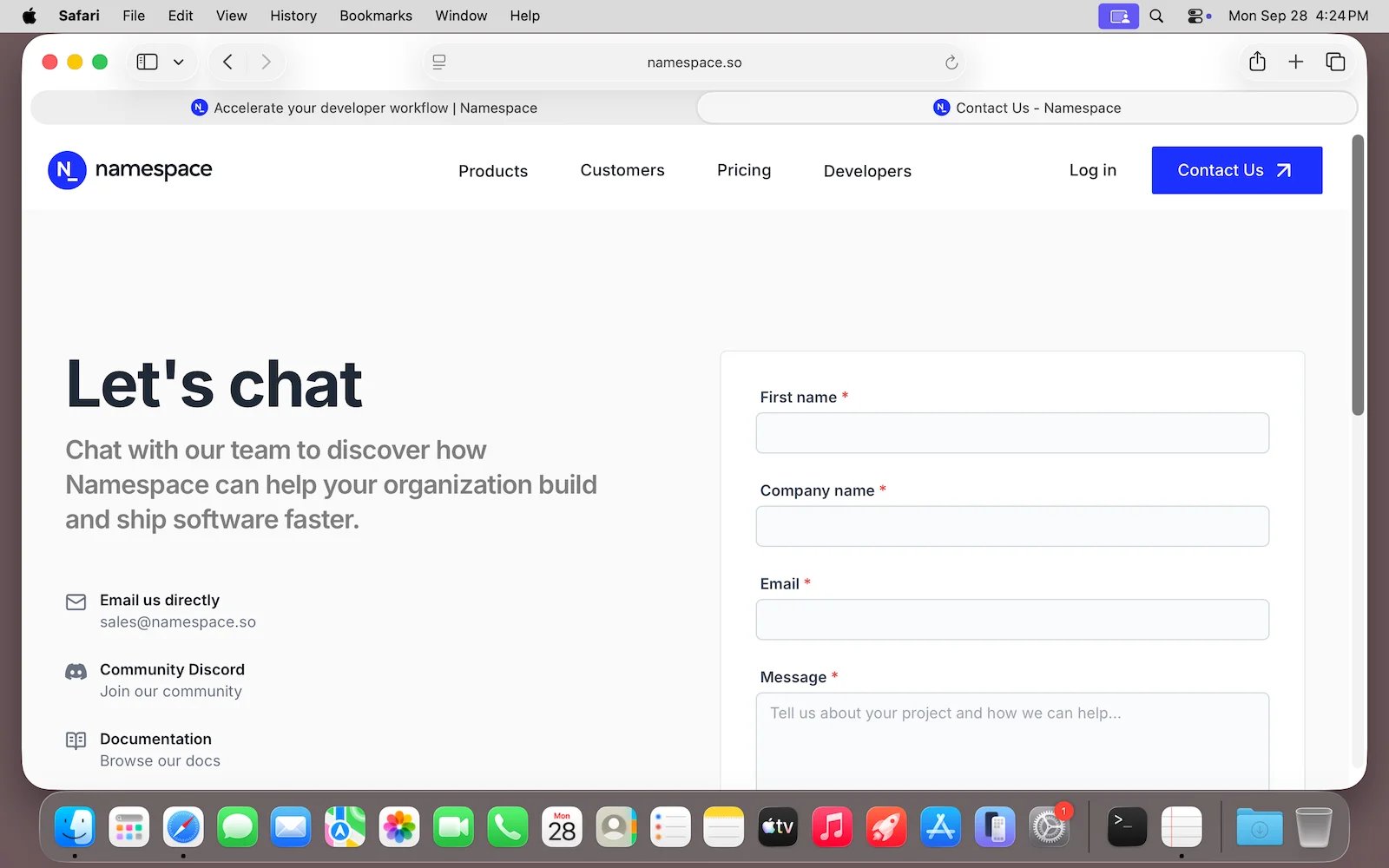
Use the keyboard
Type text into the app that has focus, and press keys and shortcuts. Click a text field first, or use a shortcut, to choose where the text goes.- CLI
devbox desktop typetypes text into the focused app.devbox desktop presspresses keys and shortcuts, such asenterorcmd+l.
Agent loop
Screenshots and clicks combine into a loop that lets an agent work on an app until a task is done:- Start the app with a command, for example
open -a Safari https://namespace.so. - Take a screenshot to capture what the screen shows.
- Send the screenshot and the task to a vision model, and ask it for the next action.
- Run the action the model returns, such as a click, typing, or a key press, then wait for the app to react.
- Repeat from step 2 until the model reports that the task is done.
decide_next_action in the CLI script and decideNextAction() in the TS SDK stand for your model call, for example to the Claude or OpenAI computer use tools. It receives the screenshot and returns the next action: a click, text to type or a key to press (CLI only), a URL to open, or done with the task result.
- CLI
- TS SDK
open action shows how to mix commands into the loop. For anything that does not need the screen, such as launching apps or opening URLs, run a command with devbox exec or devbox.exec(). Commands are usually faster and more reliable than working through the screen.
Watch the desktop
Open the desktop in a VNC client on your machine to watch an agent work, unblock it when it is stuck on a dialog, or take over with your own mouse and keyboard. See Remote Desktop.- CLI