Changelog #23


Devin Outposts on Devboxes
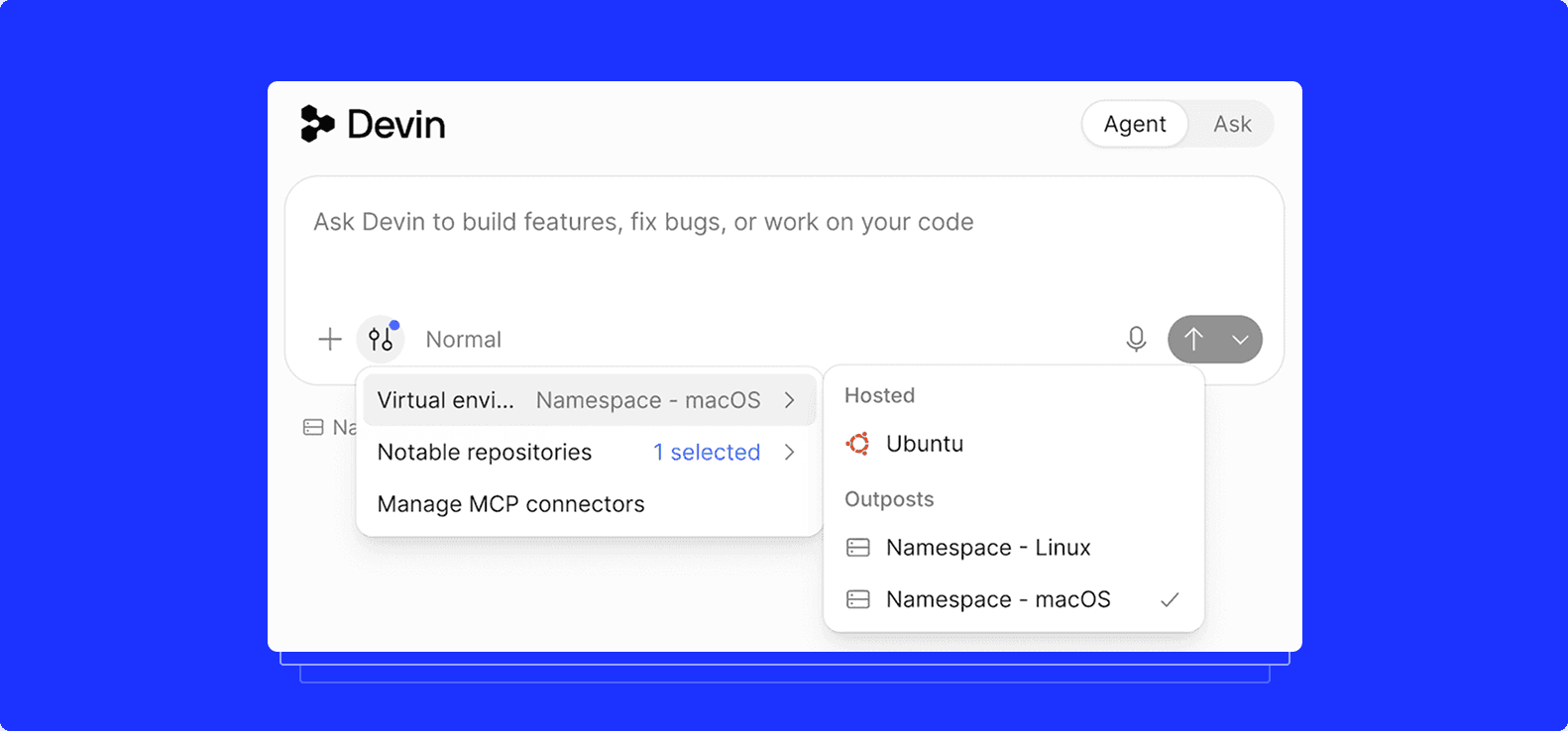
Last week we announced, in partnership with Cognition, support for running Devin sessions on a Namespace Devbox via Devin Outposts. We have given Devin its own computer designed specifically for engineering work, on both Linux and macOS. We are the only Outposts provider that runs Devin sessions on macOS.
You can point Devin at an issue and it reads the code, makes changes, runs tests, and iterates, all within a Namespace Devbox. Devin's agent loop stays in Devin's cloud and everything that touches your code moves onto its own Devbox: command execution, file edits, and repository access.
Devbox CLI: exec and logs
New subcommands let you run a one-off command on a Devbox and inspect its output afterwards, without opening an interactive shell into it.
devbox exec runs a single command against a running Devbox and streams its output back to your terminal, so you
can kick off a build or a test run without SSH-ing in first. Add --detach to start the command and immediately
print an exec ID instead of waiting for it to finish, which is useful for long-running commands or when you're
kicking off work from a script.
devbox exec [name] -- <command>Once a command is running (or has finished), devbox logs retrieves its output by exec ID, streaming both
retained and live log lines. That means a detached execution's logs are still there to inspect later, even after
you've closed the terminal that started it.
devbox logs [name] <exec-id>devbox logs list shows every past execution on a Devbox, so you can find the exec ID you're looking for without
having to track it yourself.
devbox logs list [name]More updates
Cache volumes for Windows GitHub Actions runners are now generally available to all workspaces. Enable
caching on the windows/amd64 profile in the profile editor
and add nscloud-cache-action to your workflow.
Breakpoint is now supported on Windows runners. You can create breakpoints in CI to stop the execution of a workflow and jump into a live debugging session with SSH.
Visiting a stopped Devbox's ingress URL now authenticates the request, wakes the Devbox, and serves a waiting page while it boots, instead of failing outright.
Resolve the vault references listed in an env-def file into secrets you can load into a local shell.
nsc vault export --envdef <file>nsc vault export --envdef <file> --shell bashGitHub Actions runner profiles can reference a named workspace egress policy by tag instead of inlining a domain allow-list per profile. Available in the API.
List, create, describe, and update egress policies without leaving the CLI.
nsc egress policy listnsc egress policy create --spec_file <path>nsc egress policy describe <tag>nsc egress policy update <tag> --spec_file <path>Create tokens that never expire, and extend existing ones without reissuing them.
nsc token create --user --no_expirynsc token refresh --token_id <id> --minimum_duration <duration>Audit log entries for runner-profile image builds now show a build reference and a Ready/Failed status badge, instead of just session details.