Overview
What is Devin?
Devin, built by Cognition, is an autonomous AI software engineer that can write, run, and test code. You hand it a scoped task, such as a ticket, a bug to reproduce, or a migration, and it works through the problem on its own using a shell, an editor, a browser, and any tool available to it.What are Devboxes?
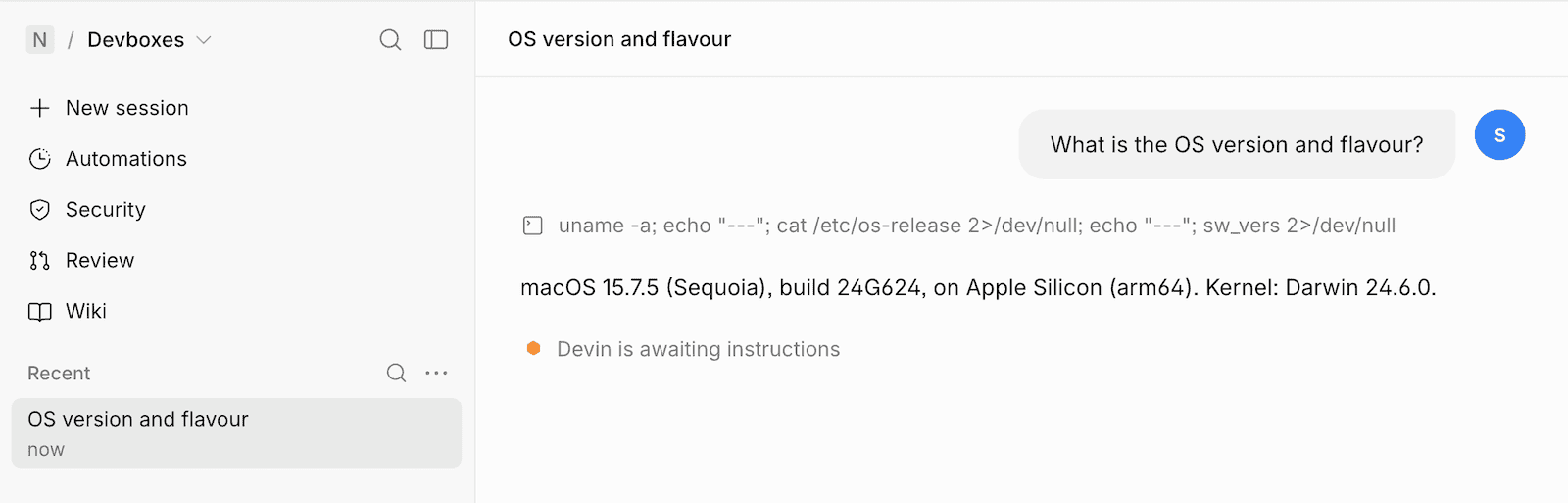
Devboxes are high-performance environments built for code workflows like builds and tests. They give agents a complete and isolated machine to work on a project, so they can clone a repository, install dependencies, write and compile code, run tests, and do whatever else the task requires. Devboxes run on both Linux and macOS, and offer all the tools you’d expect on a development machine, from Docker to language toolchains like Bazel and Gradle. The macOS environments also include tools like iOS simulators for building and testing mobile apps.How it works
Cognition handles orchestration: the agent loop, planning, context management, and inference all run in Devin’s cloud. Namespace handles execution: shell commands, file edits, repository access, builds, and test runs all happen on a Devbox. The connection between them is built on Devin Outposts. When you start a session in Devin Cloud and select a Namespace virtual environment, the session is queued for a worker. Namespace claims it, provisions a fresh Devbox, and starts the Devin worker inside it. The worker opens an outbound connection to Devin’s cloud and runs the session’s tool calls locally on the Devbox. Only outbound HTTPS is used, so there are no inbound ports, public IPs, or VPN tunnels to configure. When the session ends, the worker exits and Namespace tears the Devbox down, so each session gets a clean environment and nothing is left running afterward.Getting Started
Requirements
Before you start you need the following pieces:Create Devbox blueprint
Next, create a Devbox blueprint, which defines the core configuration for the Devbox environment.Navigate to the Devbox Blueprints page, and press the New Blueprint button.Configure the following:
Name- the name of your blueprint, how you want it to appear in Devin CloudOperating system- pick between Linux or macOSBase image- for macOS, this lets you choose the version of macOS and XcodeMachine size- to select vCPU and RAM for the DevboxAccess mode- you must set it to Workspace-wide (shared)
Add Devbox blueprint to your Devin org
Now, add the blueprint to your Devin organization, to make it available as virtual environments in Devin Cloud.Press Connect with Devin and follow the instructions.
Running the agent
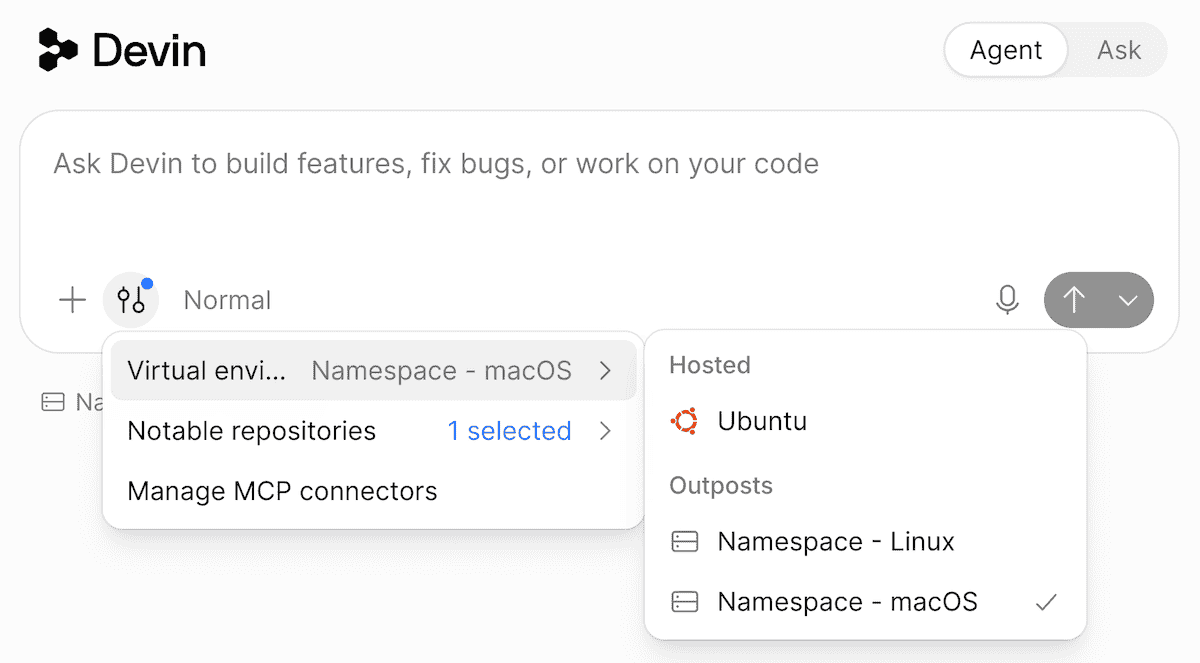
And now, you can run a Devin session on a Devbox.Head to your Devin Cloud dashboard, and open the “New session” page. Click Settings , expand Virtual environments and select the Devbox blueprint you created earlier.