

Pause job execution
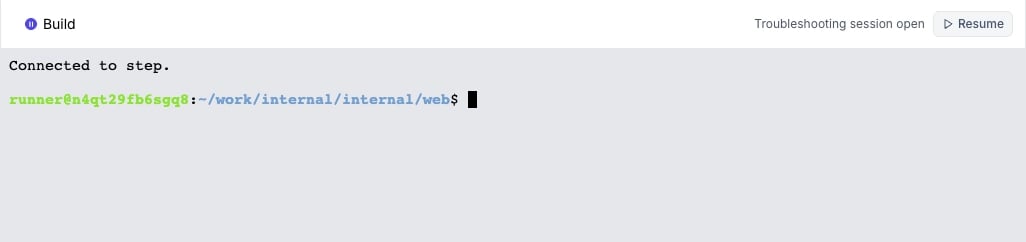
You can pause execution of a running job and connect to it using an interactive terminal for command-line debugging and investigation. This is perfect for examining file systems, running diagnostic commands, and troubleshooting build environments. Find the target job on Namespace dashboard. If the job is currently running you will see the step the is currently runing.
Setting breakpoints
Pause your GitHub Actions workflows at any point to investigate the current state, examine variables, and debug issues interactively. Using breakpoints eliminates the need to replicate the CI environment locally. You can just jump into the failed state and start exploring immediately.breakpoint-action will emit instructions how to access the paused runner.
The action is compatible with any runners and also available outside of Namespace.
Workflows with active breakpoint sessions are still “running” and continue to count towards your usage.
Instance SSH access
If the above methods are not available you can access the instance that is executing the job directly without pausing the workflow. The simplest path to jump into an interactive terminal is through your browser with our web SSH interface.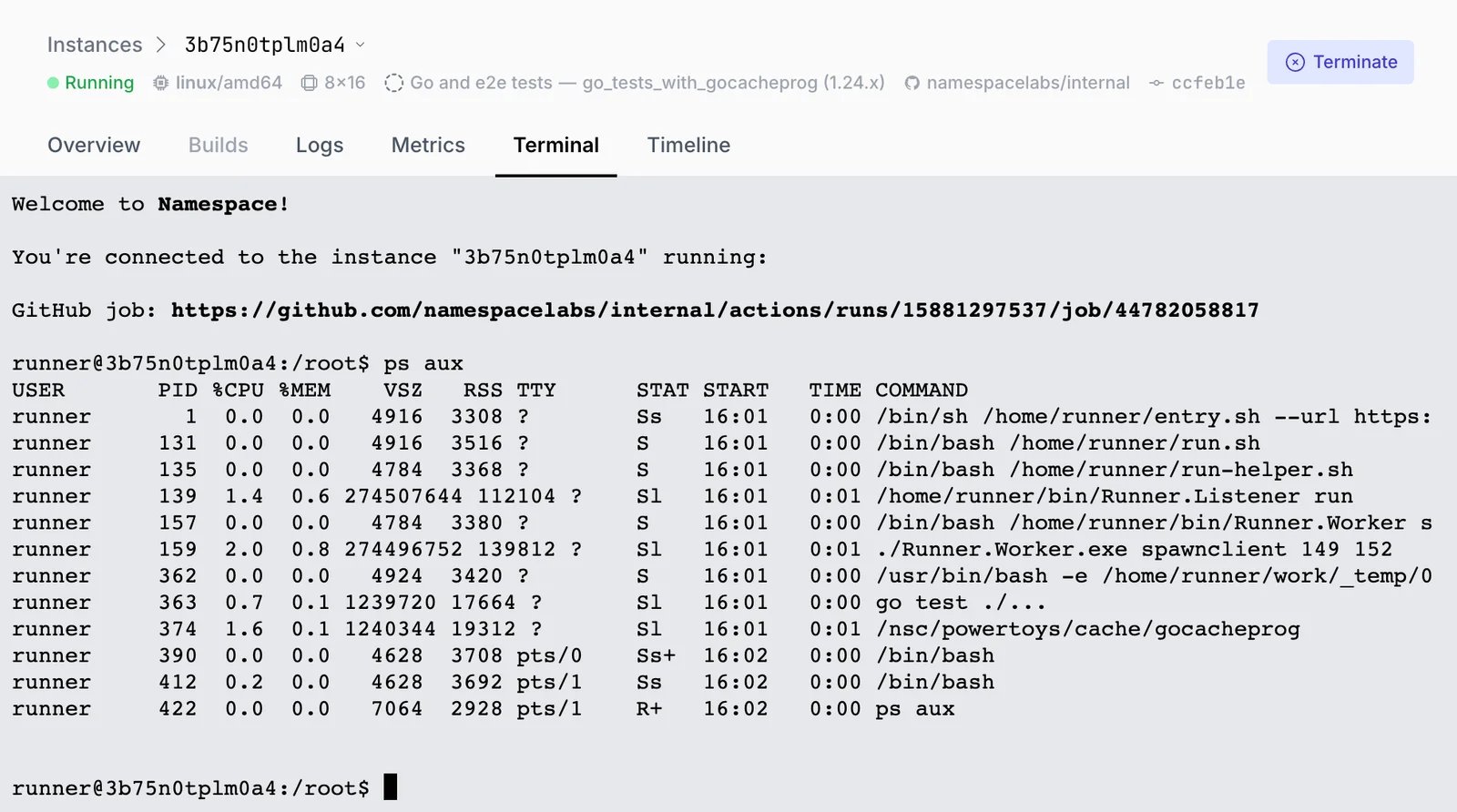
Identify the runner instance id
Open the Set up job step in your job logs. The instance id can be found in the runner name.
Runner name: 'nsc-runner-<instance-id>'You can also look up which instance ran which job in our dashboard.Connect to the runner
Open an SSH session:
- nsc CLI
- Native SSH
Connect with Namespace CLI: