Cognition & Namespace: Giving Devin a fast computer

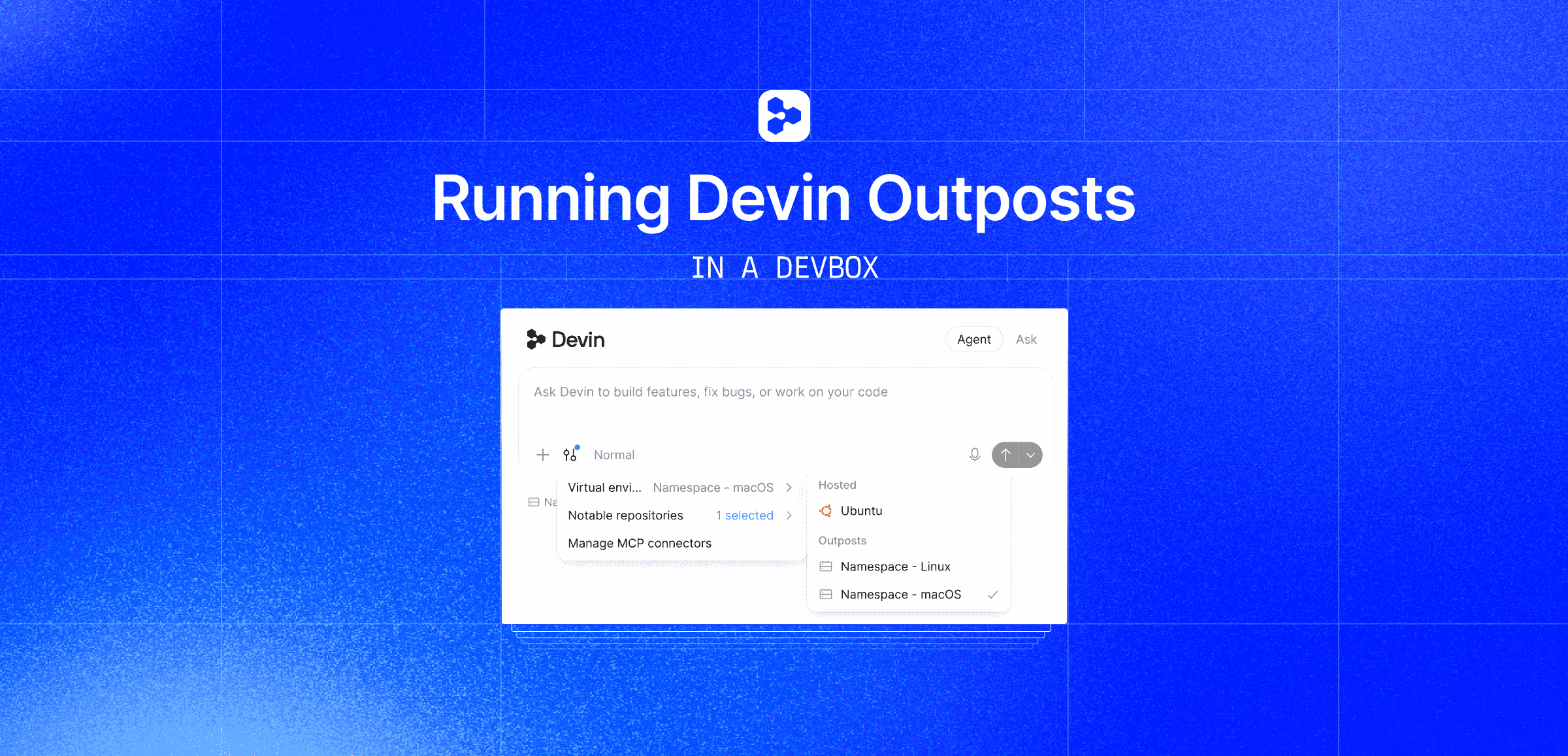
We have partnered with Cognition to give Devin its own computer, designed specifically for engineering work. You can point Devin at an issue and it reads the code, makes changes, runs tests, and iterates, all within a Namespace Devbox. Devin's agent loop stays in Devin's cloud and everything that touches your code moves onto its own Devbox: command execution, file edits, and repository access.
macOS Devboxes
“You can't really build iOS apps without a Mac. So we gave Devin one. With Devin Outposts on Namespace Devboxes, Devin now has a first-class macOS environment, powered by Apple's M5 chip. And with computer use, Devin can autonomously build, run, and test iOS apps end to end.”

Namespace is the only Outposts provider that runs Devin sessions on macOS. Pick macOS as the environment in Devin and the session runs on an Apple Silicon Mac (M4 Pro or M5 Max), not an emulated or nested-virtualized stand-in.
From there Devin can open the project in Xcode, build it, launch the Simulator, and run your UI tests. A Devbox keeps its filesystem for the life of the session, so derived data and build caches carry over between iterations. A Devin session that rebuilds a project many times over doesn't pay full compile time on every attempt.
If a UI test fails or the Simulator hangs, you don't have to take Devin's word for what happened. Every macOS Devbox supports VNC, so you can connect to the session from the Namespace dashboard and see the same screen Devin is looking at.
Demo
The video below shows Devin building an iOS app for the ⚽️ 2026 World Cup on a macOS Devbox.
How it works
Devin Outposts is Cognition's mechanism for running a session outside their own cloud: instead of a Devin-managed sandbox, the work happens on infrastructure you choose. Namespace is one of those choices, and it plugs in through a Devbox blueprint: a saved configuration for the operating system, base image, and machine size a session should run on. Connect that blueprint to your Devin organization and it shows up as a virtual environment you can select for any session.
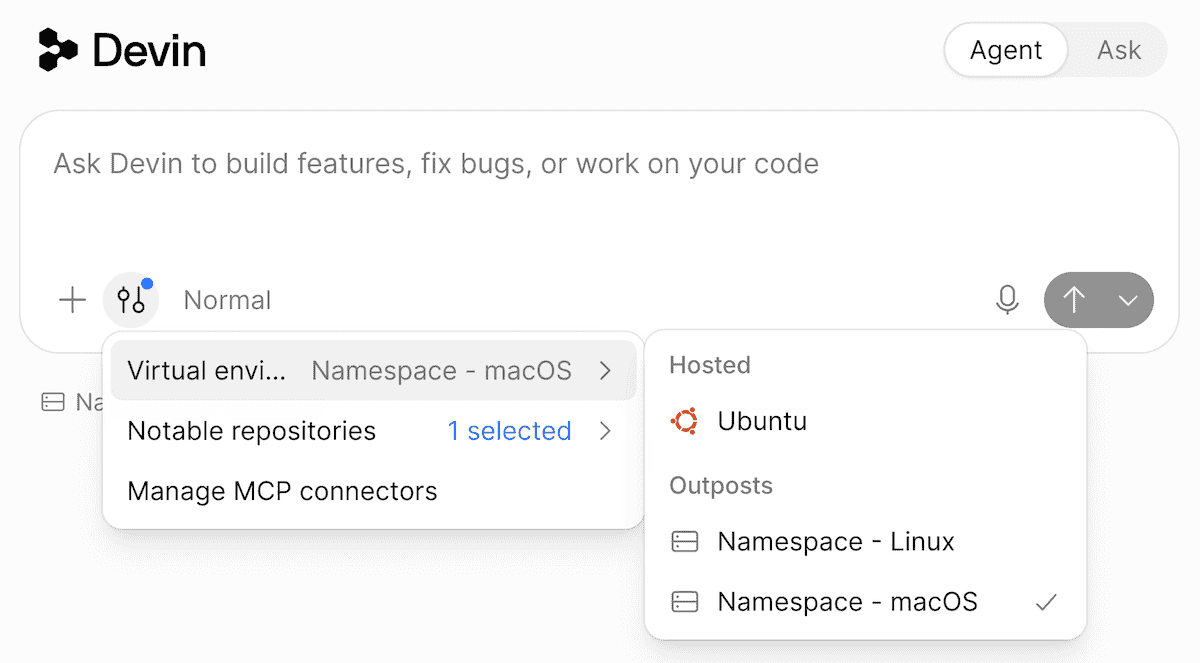
Select a Namespace blueprint as your environment in Devin, and every new session gets queued for a worker. Namespace claims it, provisions a fresh Devbox, and starts the Devin worker inside it. From there, two separate connections do the work. The worker opens an outbound HTTPS connection to Devin's cloud and runs the session's tool calls, reading files, running commands, applying edits, directly on the Devbox. Only outbound HTTPS is used, so there are no inbound ports, public IPs, or VPN tunnels to configure. The control plane handles a different job: launching the machine, keeping track of it, and tearing it down once the session ends. Here's what that looks like for two sessions running side by side:
& events
& events
Use cases
A Devbox is a full machine, which gives a Devin session a few things to work with directly: a route into your internal network, a starting image you define yourself, and control over what it's allowed to reach on the way out.
Connecting to internal services
Namespace Devboxes integrate with Tailscale: configure your tailnet credentials once in your workspace integrations, then reference that tailnet from a Devbox blueprint, and every Devbox created from it joins automatically. Tailscale support currently applies to Linux Devboxes only.
When a Devbox joins your tailnet, it becomes a node on your private network with the same access as any other authorized device. A Devin session can reach internal services by hostname, subject to your existing ACL rules, instead of working against stubs or waiting on a manually configured tunnel.
The connection is established automatically at boot using a short-lived OIDC token. There are no stored credentials or auth keys to manage. The Devbox shows up as a normal node in your Tailscale admin console, inherits whatever tags your workspace configured, and is removed once the session ends.
Custom environments
Define a Dockerfile for a Linux Devbox, build it once, and every Devbox created from it boots from the same pre-built image: your compiler version, your internal tooling, your production base image if that's what you're matching.
FROM ubuntu:24.04

# Boilerplate: common tools and a non-root user with passwordless sudo
RUN apt-get update && apt-get install -y git curl build-essential sudo
RUN useradd -m -s /bin/bash devbox && echo "devbox ALL=(ALL) NOPASSWD:ALL" >> /etc/sudoers
USER devbox

# Your team's specific toolchain
RUN apt-get install -y protobuf-compiler
RUN go install google.golang.org/protobuf/cmd/protoc-gen-go@v1.36

# Internal tooling that isn't on any public registry
COPY scripts/setup-internal-tools.sh /tmp/
RUN /tmp/setup-internal-tools.sh
Build and register the image with the Devbox CLI:
devbox image build ./my-image --name=my-team/golangPick that image as the base image when you create your Devbox blueprint, then connect the blueprint to your Devin organization. This is useful for matching CI exactly: bake in the same compiler, Bazel or Gradle version, and system packages your pipeline uses, so a test that passes for Devin passes in CI for the same reason. It also lets you bundle internal tooling, such as code generators and internal libraries that aren't published to any public registry, into the image once instead of installing them at the start of every session.
Controlling outbound requests
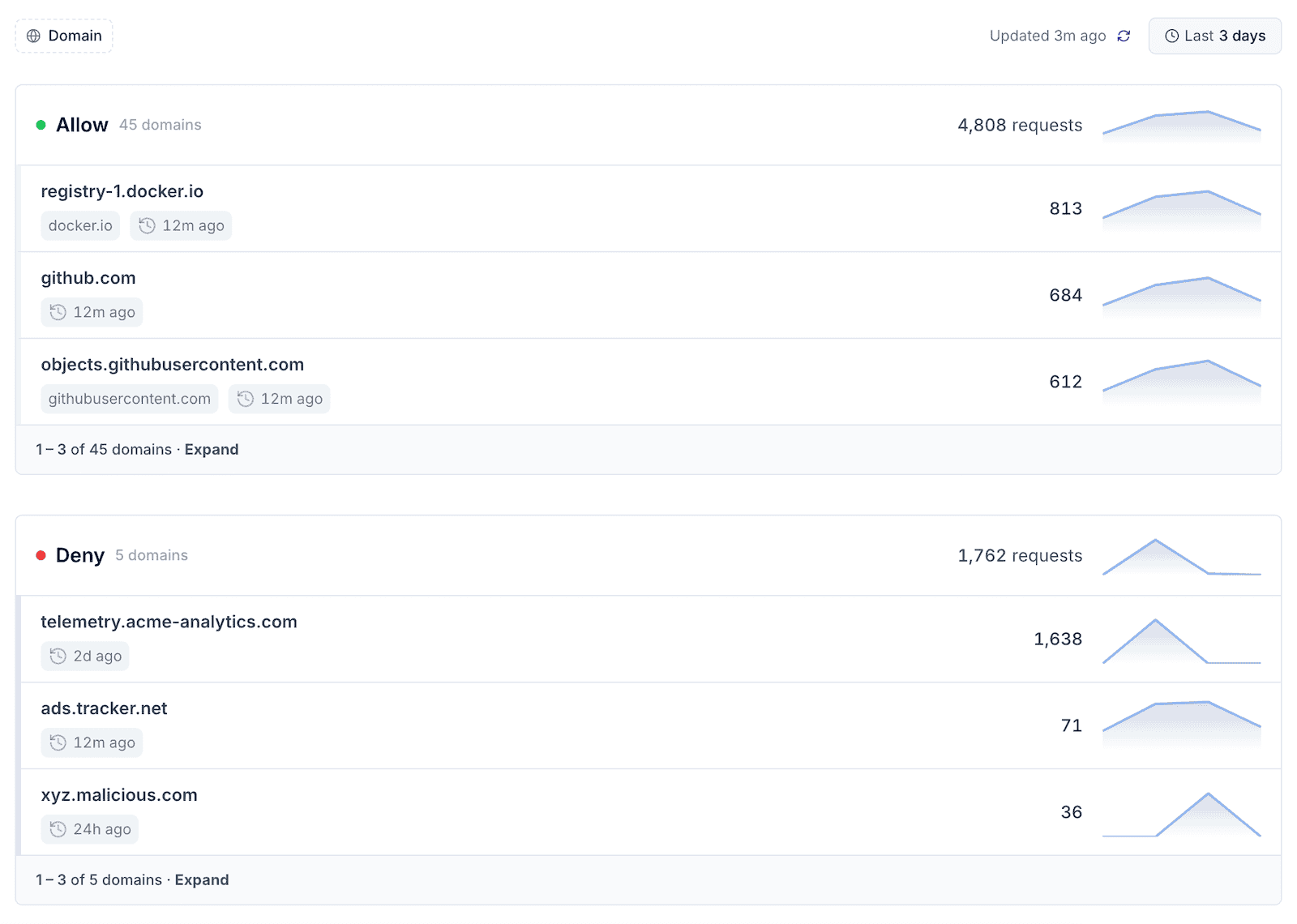
By default a Devbox can reach the open internet. Egress filtering restricts that to an explicit allow-list of domains, so a Devin session can only talk to the services a task actually needs. Egress filtering currently applies to Linux Devboxes only.
Turn it on from the Devbox blueprint: enable the network policy and list the domains a session is
allowed to reach. Prefix a domain with *. to include its subdomains.
Every request the Devbox makes, allowed or denied, shows up in the Egress Traffic dashboard, so you can confirm a session reached only what you expected it to.
Getting started
Devin Outposts turns a Namespace Devbox into wherever Devin needs to run: a Linux machine matching your CI toolchain, or a macOS machine for the Xcode and Simulator work. Getting there comes down to three steps:
- Create a Devbox blueprint with the operating system, base image, and machine size your work needs.
- Connect that blueprint to your Devin organization so it shows up as a virtual environment.
- Select it when you start a new session.
See the Devin integration guide for the full walkthrough.
If you have questions, reach out.