> ## Documentation Index
> Fetch the complete documentation index at: https://namespace.so/docs/llms.txt
> Use this file to discover all available pages before exploring further.
# Connecting to a Devbox
> Open a shell on a Devbox with SSH or a session, and choose the one that fits your work, including running coding agents.
export const KeepTabPosition = () => {
useEffect(() => {
const stateKey = "__namespaceKeepTabPosition";
const releaseState = state => {
state.instances -= 1;
if (state.instances > 0) return;
state.removeListeners();
if (window[stateKey] === state) delete window[stateKey];
};
const existingState = window[stateKey];
if (existingState) {
existingState.instances += 1;
return () => releaseState(existingState);
}
const maxSettleTime = 250;
const requiredStableFrames = 3;
const positionTolerance = 0.5;
let animationFrame;
let observer;
let settleDeadline;
let stableFrames = 0;
let tabListToKeep;
let tabListTop;
const findTab = event => {
if (!(event.target instanceof Element)) return null;
return event.target.closest(".tab-container [role='tab']");
};
const findScrollContainer = element => {
for (let parent = element.parentElement; parent; parent = parent.parentElement) {
const {overflowY} = getComputedStyle(parent);
if ((overflowY === "auto" || overflowY === "scroll") && parent.scrollHeight > parent.clientHeight) {
return parent;
}
}
return null;
};
const stopKeepingPosition = () => {
if (animationFrame) cancelAnimationFrame(animationFrame);
animationFrame = undefined;
observer?.disconnect();
tabListToKeep = undefined;
};
const restoreTabListPosition = () => {
if (!tabListToKeep?.isConnected) return 0;
const offset = tabListToKeep.getBoundingClientRect().top - tabListTop;
if (Math.abs(offset) < positionTolerance) return offset;
const scrollOptions = {
top: offset,
behavior: "instant"
};
const scrollContainer = findScrollContainer(tabListToKeep);
if (scrollContainer) {
scrollContainer.scrollBy(scrollOptions);
} else {
window.scrollBy(scrollOptions);
}
return offset;
};
const settlePosition = () => {
const offset = restoreTabListPosition();
stableFrames = Math.abs(offset) < positionTolerance ? stableFrames + 1 : 0;
if (stableFrames >= requiredStableFrames || performance.now() >= settleDeadline) {
stopKeepingPosition();
return;
}
animationFrame = requestAnimationFrame(settlePosition);
};
observer = new MutationObserver(() => {
stableFrames = 0;
restoreTabListPosition();
});
const keepTabListInPlace = tab => {
stopKeepingPosition();
tabListToKeep = tab.closest("[role='tablist']");
if (!tabListToKeep) return;
tabListTop = tabListToKeep.getBoundingClientRect().top;
settleDeadline = performance.now() + maxSettleTime;
stableFrames = 0;
observer.observe(document.getElementById("content") ?? document.documentElement, {
attributes: true,
attributeFilter: ["aria-selected", "class"],
childList: true,
subtree: true
});
animationFrame = requestAnimationFrame(settlePosition);
};
const selectWithoutNavigation = event => {
if (!event.isTrusted) return;
const tab = findTab(event);
if (!tab) return;
keepTabListInPlace(tab);
event.preventDefault();
event.stopPropagation();
tab.click();
restoreTabListPosition();
};
const selectWithKeyboard = event => {
if (!event.isTrusted) return;
const tab = findTab(event);
const tabList = tab?.closest("[role='tablist']");
if (!tab || !tabList) return;
const tabs = Array.from(tabList.querySelectorAll(":scope > [role='tab']"));
const currentIndex = tabs.indexOf(tab);
let nextIndex;
switch (event.key) {
case "ArrowLeft":
nextIndex = (currentIndex - 1 + tabs.length) % tabs.length;
break;
case "ArrowRight":
nextIndex = (currentIndex + 1) % tabs.length;
break;
case "Home":
nextIndex = 0;
break;
case "End":
nextIndex = tabs.length - 1;
break;
case "Enter":
case " ":
nextIndex = currentIndex;
break;
default:
return;
}
keepTabListInPlace(tab);
event.preventDefault();
event.stopPropagation();
tabs[nextIndex]?.click();
tabs[nextIndex]?.focus({
preventScroll: true
});
restoreTabListPosition();
};
document.addEventListener("click", selectWithoutNavigation, true);
document.addEventListener("keydown", selectWithKeyboard, true);
const state = {
instances: 1,
removeListeners: () => {
stopKeepingPosition();
document.removeEventListener("click", selectWithoutNavigation, true);
document.removeEventListener("keydown", selectWithKeyboard, true);
}
};
window[stateKey] = state;
return () => releaseState(state);
}, []);
return null;
};
Once a Devbox exists, you work in it through a terminal. There are two ways to get one, and they differ in what happens when you close it. An SSH connection lasts as long as your terminal does. A session is a terminal that lives on the Devbox, so whatever runs in it keeps going after you disconnect, and you can come back to it later.
For quick interactive work, and for tools that connect over SSH.
For work that should outlive your connection, including a coding agent.
Open a Shell with SSH
`devbox ssh` opens an interactive shell on the Devbox. The connection is tunneled through the Namespace API, so the Devbox needs no public IP address or open port.
Omit the name to pick a Devbox from a list:
```bash theme={null}
devbox ssh
```
Or name it to connect straight away:
```bash theme={null}
devbox ssh my-devbox
```
Expand the Devbox on the [Devboxes page](https://cloud.namespace.so/workspace/devboxes) and select the **Terminal** tab. It opens a shell on the Devbox in your browser, with nothing to install locally.
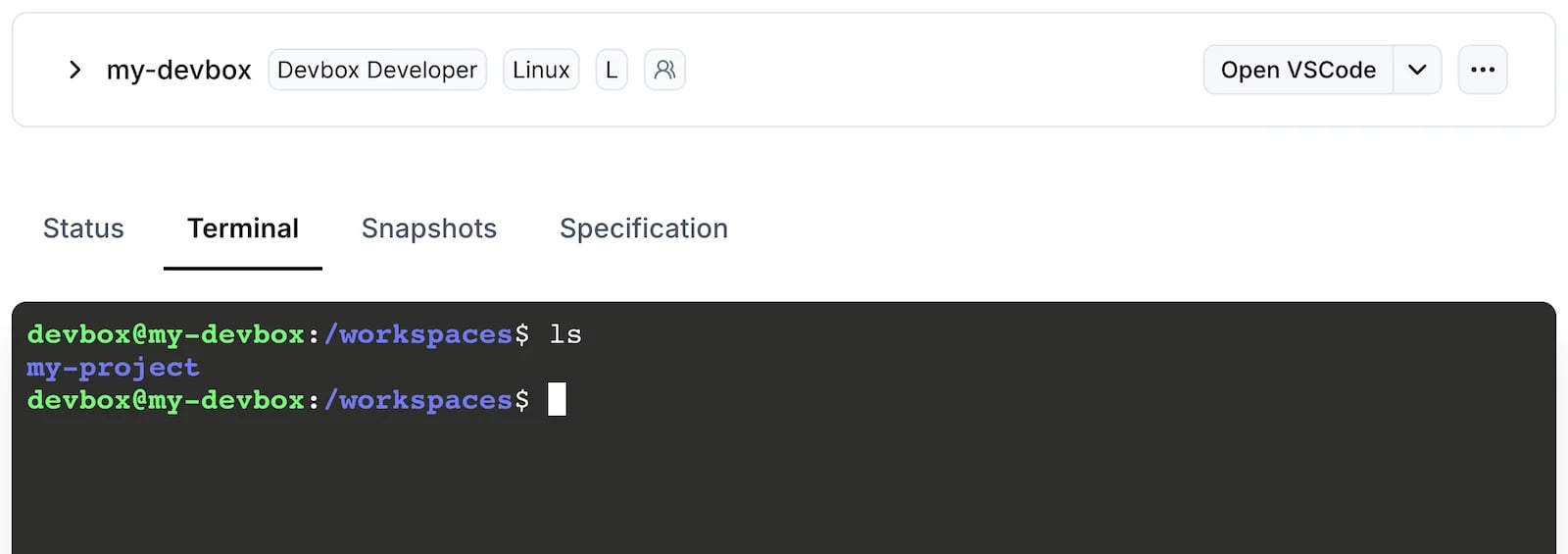 Connecting to a stopped Devbox starts it first. The shell ends when you exit it or when your connection drops, and so does anything running in the foreground.
Keep Work Running in a Session
A session is a named terminal that runs on the Devbox. Closing your terminal only detaches you from it: the shell and everything running in it keep going, with their output, until you reconnect. Sessions are tmux sessions managed by the Devbox.
Connect to a session by name. The session is created the first time you use the name:
```bash theme={null}
devbox session connect my-devbox --session work
```
Run the same command later to pick up where you left off. Run `devbox session connect` with no arguments to choose a Devbox and a session from a list.
Open the Devbox in the [Namespace dashboard](https://cloud.namespace.so/workspace/devboxes) and select **New session** under **Sessions** in the sidebar. Click a session in the list to reconnect to it.
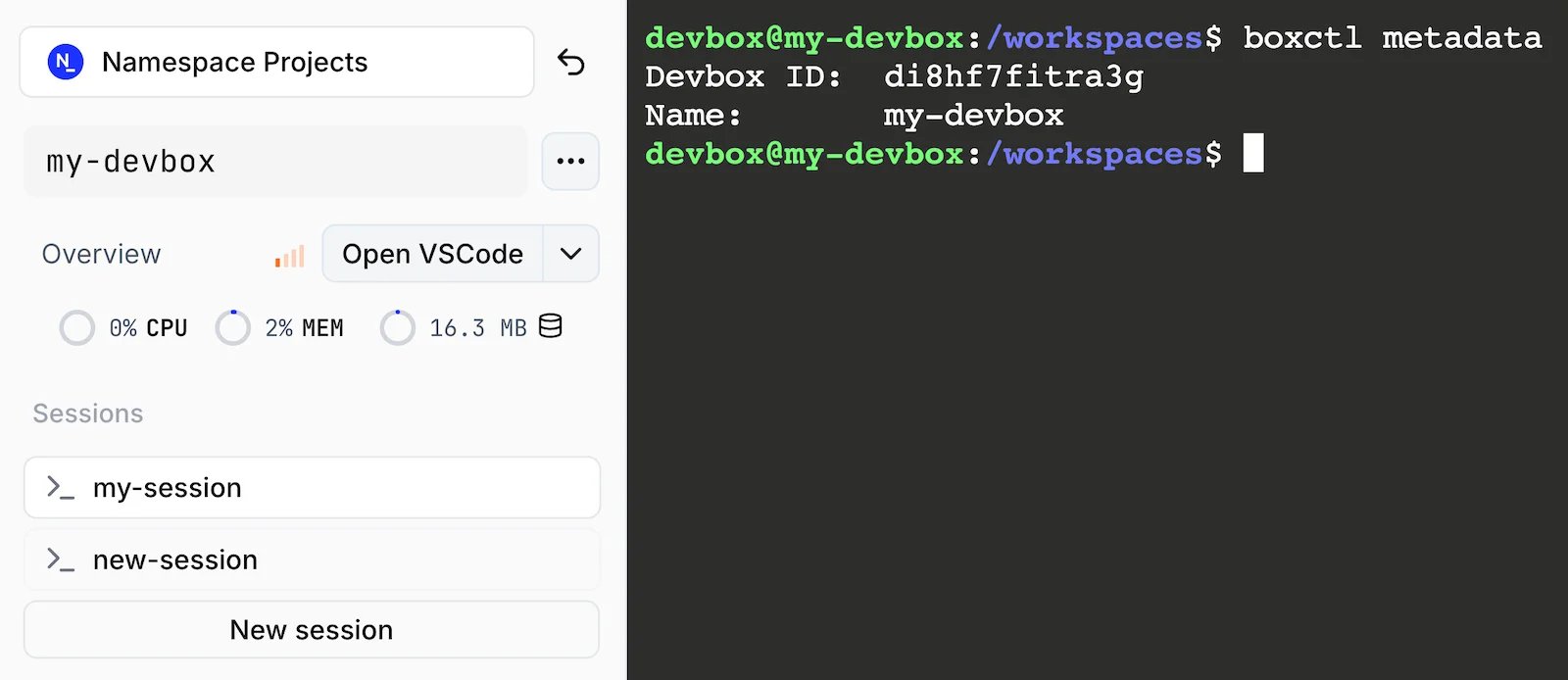 A session is shared between the CLI and the dashboard. Start a build from your terminal, close the laptop, and check on it later from the dashboard in a browser. One client is attached at a time: connecting from a new place detaches the previous one.
Create one session per stream of work, for example `server` for a dev server, `tests` for a test watcher, and `shell` for everything else. See [`devbox session`](/docs/reference/devbox-cli/session) to list sessions.
## Run a Coding Agent in a Session
A coding agent that works on the Devbox for a long stretch is the clearest case for a session. Over SSH, the agent stops when your laptop sleeps or your network drops. In a session, it carries on without you, and you can reconnect to see what it has done or give it the next task.
```bash theme={null}
devbox session connect my-devbox --session agent
```
Start your agent in the session, for example `claude`, `codex`, or `amp`, and give it a task.
Close your terminal while the agent works. Reconnect with the same command to check on it:
```bash theme={null}
devbox session connect my-devbox --session agent
```
A session counts as activity for only 15 minutes after it is created, so a Devbox can stop for being idle while an agent is still working in it. Ask the agent to create a task marker while it works. See [Running long tasks](/docs/guides/devbox/long-running-tasks).
## Choose Between SSH and a Session
| | `devbox ssh` | Session |
| - | - | - |
| Keeps running after you disconnect | No | Yes |
| Reconnect to the same shell later | No | Yes |
| Reconnect from the dashboard | No | Yes |
| Works with `ssh`, `scp`, `rsync`, and IDEs | Yes, with `devbox configure-ssh` | No |
| Keeps the Devbox active | While the connection is open | For 15 minutes after the session is created |
Use SSH for short interactive work, for piping local data into a command, and for tools that need an SSH connection. Use a session for anything you want to come back to: a dev server, a long build, or a coding agent.
To run a command without a terminal at all, and keep its output to read later, use [`devbox exec`](/docs/devbox/exec) instead.
## Next Steps
Run commands without a terminal and read their output later.
Open a Devbox in VS Code, Cursor, JetBrains, or Zed.
Keep a Devbox running while a build or an agent works.
This documentation is built and hosted on [Mintlify](https://mintlify.com), a developer documentation platform.
A session is shared between the CLI and the dashboard. Start a build from your terminal, close the laptop, and check on it later from the dashboard in a browser. One client is attached at a time: connecting from a new place detaches the previous one.
Create one session per stream of work, for example `server` for a dev server, `tests` for a test watcher, and `shell` for everything else. See [`devbox session`](/docs/reference/devbox-cli/session) to list sessions.
## Run a Coding Agent in a Session
A coding agent that works on the Devbox for a long stretch is the clearest case for a session. Over SSH, the agent stops when your laptop sleeps or your network drops. In a session, it carries on without you, and you can reconnect to see what it has done or give it the next task.
```bash theme={null}
devbox session connect my-devbox --session agent
```
Start your agent in the session, for example `claude`, `codex`, or `amp`, and give it a task.
Close your terminal while the agent works. Reconnect with the same command to check on it:
```bash theme={null}
devbox session connect my-devbox --session agent
```
A session counts as activity for only 15 minutes after it is created, so a Devbox can stop for being idle while an agent is still working in it. Ask the agent to create a task marker while it works. See [Running long tasks](/docs/guides/devbox/long-running-tasks).
## Choose Between SSH and a Session
| | `devbox ssh` | Session |
| - | - | - |
| Keeps running after you disconnect | No | Yes |
| Reconnect to the same shell later | No | Yes |
| Reconnect from the dashboard | No | Yes |
| Works with `ssh`, `scp`, `rsync`, and IDEs | Yes, with `devbox configure-ssh` | No |
| Keeps the Devbox active | While the connection is open | For 15 minutes after the session is created |
Use SSH for short interactive work, for piping local data into a command, and for tools that need an SSH connection. Use a session for anything you want to come back to: a dev server, a long build, or a coding agent.
To run a command without a terminal at all, and keep its output to read later, use [`devbox exec`](/docs/devbox/exec) instead.
## Next Steps
Run commands without a terminal and read their output later.
Open a Devbox in VS Code, Cursor, JetBrains, or Zed.
Keep a Devbox running while a build or an agent works.
This documentation is built and hosted on [Mintlify](https://mintlify.com), a developer documentation platform.