> ## Documentation Index
> Fetch the complete documentation index at: https://namespace.so/docs/llms.txt
> Use this file to discover all available pages before exploring further.
# Computer Controls
> Capture the screen of a macOS Devbox and click on it.
export const KeepTabPosition = () => {
useEffect(() => {
const stateKey = "__namespaceKeepTabPosition";
const releaseState = state => {
state.instances -= 1;
if (state.instances > 0) return;
state.removeListeners();
if (window[stateKey] === state) delete window[stateKey];
};
const existingState = window[stateKey];
if (existingState) {
existingState.instances += 1;
return () => releaseState(existingState);
}
const maxSettleTime = 250;
const requiredStableFrames = 3;
const positionTolerance = 0.5;
let animationFrame;
let observer;
let settleDeadline;
let stableFrames = 0;
let tabListToKeep;
let tabListTop;
const findTab = event => {
if (!(event.target instanceof Element)) return null;
return event.target.closest(".tab-container [role='tab']");
};
const findScrollContainer = element => {
for (let parent = element.parentElement; parent; parent = parent.parentElement) {
const {overflowY} = getComputedStyle(parent);
if ((overflowY === "auto" || overflowY === "scroll") && parent.scrollHeight > parent.clientHeight) {
return parent;
}
}
return null;
};
const stopKeepingPosition = () => {
if (animationFrame) cancelAnimationFrame(animationFrame);
animationFrame = undefined;
observer?.disconnect();
tabListToKeep = undefined;
};
const restoreTabListPosition = () => {
if (!tabListToKeep?.isConnected) return 0;
const offset = tabListToKeep.getBoundingClientRect().top - tabListTop;
if (Math.abs(offset) < positionTolerance) return offset;
const scrollOptions = {
top: offset,
behavior: "instant"
};
const scrollContainer = findScrollContainer(tabListToKeep);
if (scrollContainer) {
scrollContainer.scrollBy(scrollOptions);
} else {
window.scrollBy(scrollOptions);
}
return offset;
};
const settlePosition = () => {
const offset = restoreTabListPosition();
stableFrames = Math.abs(offset) < positionTolerance ? stableFrames + 1 : 0;
if (stableFrames >= requiredStableFrames || performance.now() >= settleDeadline) {
stopKeepingPosition();
return;
}
animationFrame = requestAnimationFrame(settlePosition);
};
observer = new MutationObserver(() => {
stableFrames = 0;
restoreTabListPosition();
});
const keepTabListInPlace = tab => {
stopKeepingPosition();
tabListToKeep = tab.closest("[role='tablist']");
if (!tabListToKeep) return;
tabListTop = tabListToKeep.getBoundingClientRect().top;
settleDeadline = performance.now() + maxSettleTime;
stableFrames = 0;
observer.observe(document.getElementById("content") ?? document.documentElement, {
attributes: true,
attributeFilter: ["aria-selected", "class"],
childList: true,
subtree: true
});
animationFrame = requestAnimationFrame(settlePosition);
};
const selectWithoutNavigation = event => {
if (!event.isTrusted) return;
const tab = findTab(event);
if (!tab) return;
keepTabListInPlace(tab);
event.preventDefault();
event.stopPropagation();
tab.click();
restoreTabListPosition();
};
const selectWithKeyboard = event => {
if (!event.isTrusted) return;
const tab = findTab(event);
const tabList = tab?.closest("[role='tablist']");
if (!tab || !tabList) return;
const tabs = Array.from(tabList.querySelectorAll(":scope > [role='tab']"));
const currentIndex = tabs.indexOf(tab);
let nextIndex;
switch (event.key) {
case "ArrowLeft":
nextIndex = (currentIndex - 1 + tabs.length) % tabs.length;
break;
case "ArrowRight":
nextIndex = (currentIndex + 1) % tabs.length;
break;
case "Home":
nextIndex = 0;
break;
case "End":
nextIndex = tabs.length - 1;
break;
case "Enter":
case " ":
nextIndex = currentIndex;
break;
default:
return;
}
keepTabListInPlace(tab);
event.preventDefault();
event.stopPropagation();
tabs[nextIndex]?.click();
tabs[nextIndex]?.focus({
preventScroll: true
});
restoreTabListPosition();
};
document.addEventListener("click", selectWithoutNavigation, true);
document.addEventListener("keydown", selectWithKeyboard, true);
const state = {
instances: 1,
removeListeners: () => {
stopKeepingPosition();
document.removeEventListener("click", selectWithoutNavigation, true);
document.removeEventListener("keydown", selectWithKeyboard, true);
}
};
window[stateKey] = state;
return () => releaseState(state);
}, []);
return null;
};
Use display controls to capture screenshots of a macOS Devbox and click anywhere on its screen. Together they let an agent see what an app shows and act on it, for example to check that a page renders or to click through a flow that has no command-line equivalent.
Display controls are available on macOS Devboxes only. On a Linux Devbox, they reject with `DevboxDisplayUnavailableError`. See [Create a Devbox](/docs/devbox/lifecycle#create-a-devbox).
## Take screenshots
Capture the full screen as a PNG. The screenshot is 2560 by 1600 pixels. A display call starts a stopped Devbox and keeps its connection open for later screenshots and clicks.
See [`display.screenshot()`](/docs/reference/typescript-sdk/devbox/display#display-screenshot) for its options and return value.
```typescript {12} theme={null}
import { writeFile } from "node:fs/promises";
import { createDevboxClient } from "@namespacelabs/sdk/devbox";
const client = createDevboxClient();
const devbox = await client.devboxes.get("my-mac-devbox");
// Open a page, and wait for it to load
await devbox.exec(["open", "-a", "Safari", "https://namespace.so"]);
await new Promise((resolve) => setTimeout(resolve, 2_000));
// Capture the screen and save it as a PNG
const screenshot = await devbox.display.screenshot({ timeoutMs: 60_000 });
await writeFile("screen.png", screenshot.png);
client.close();
```
The result holds the PNG bytes in `png`, the screen size in `width` and `height`, and the `desktopName` reported by the display server. Pass the PNG to your model as an image.
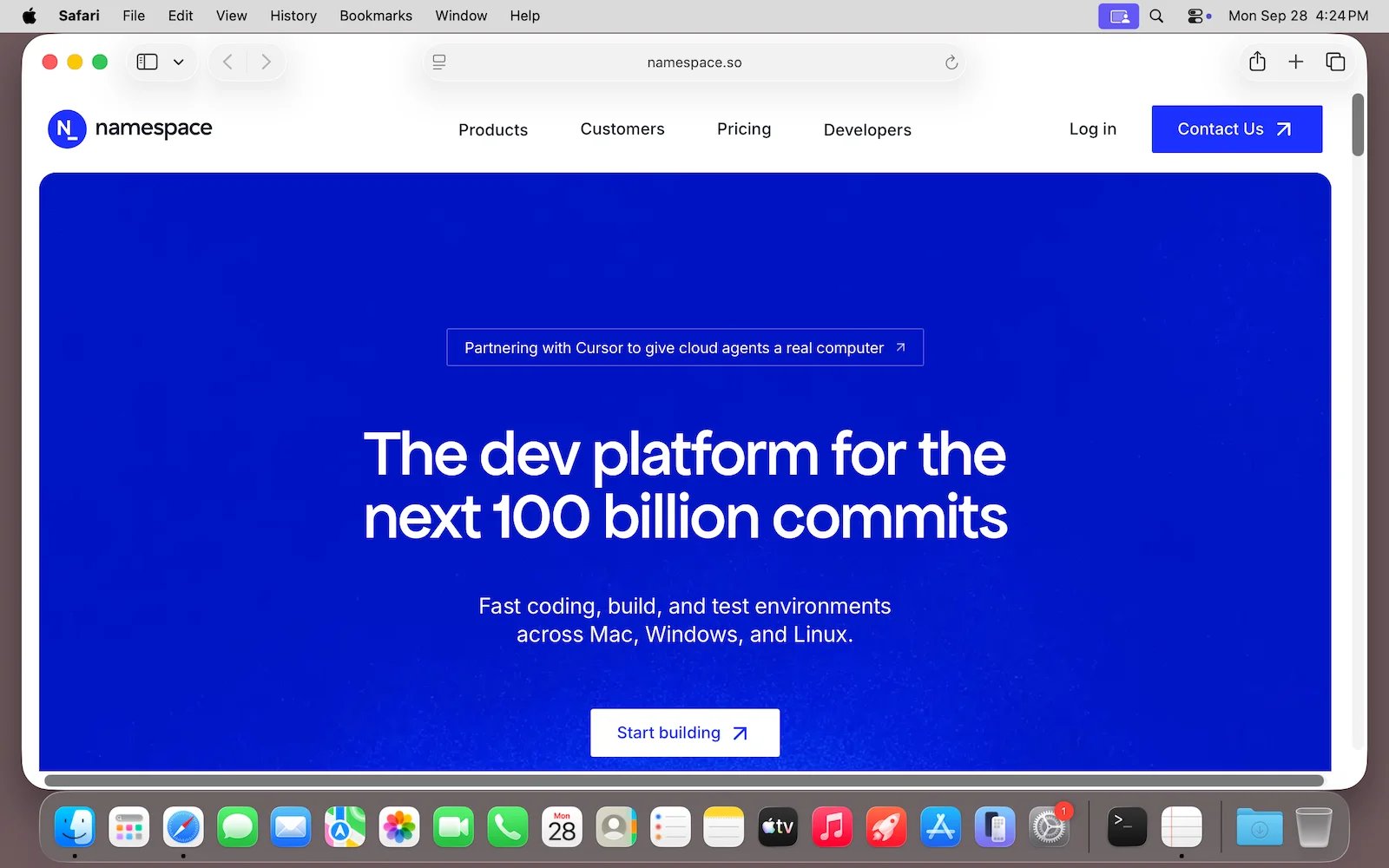 Each screenshot takes about a second. `open` returns before an app has finished loading, so wait briefly, or take screenshots until the screen stops changing, before acting on what you see.
## Click the mouse
Click at a point on the screen. Coordinates are in screenshot pixels, with `(0, 0)` at the top-left corner, so a point read from a screenshot can be passed as is.
See [`display.click()`](/docs/reference/typescript-sdk/devbox/display#display-click) for its options, including the mouse button.
```typescript {7} theme={null}
import { createDevboxClient } from "@namespacelabs/sdk/devbox";
const client = createDevboxClient();
const devbox = await client.devboxes.get("my-mac-devbox");
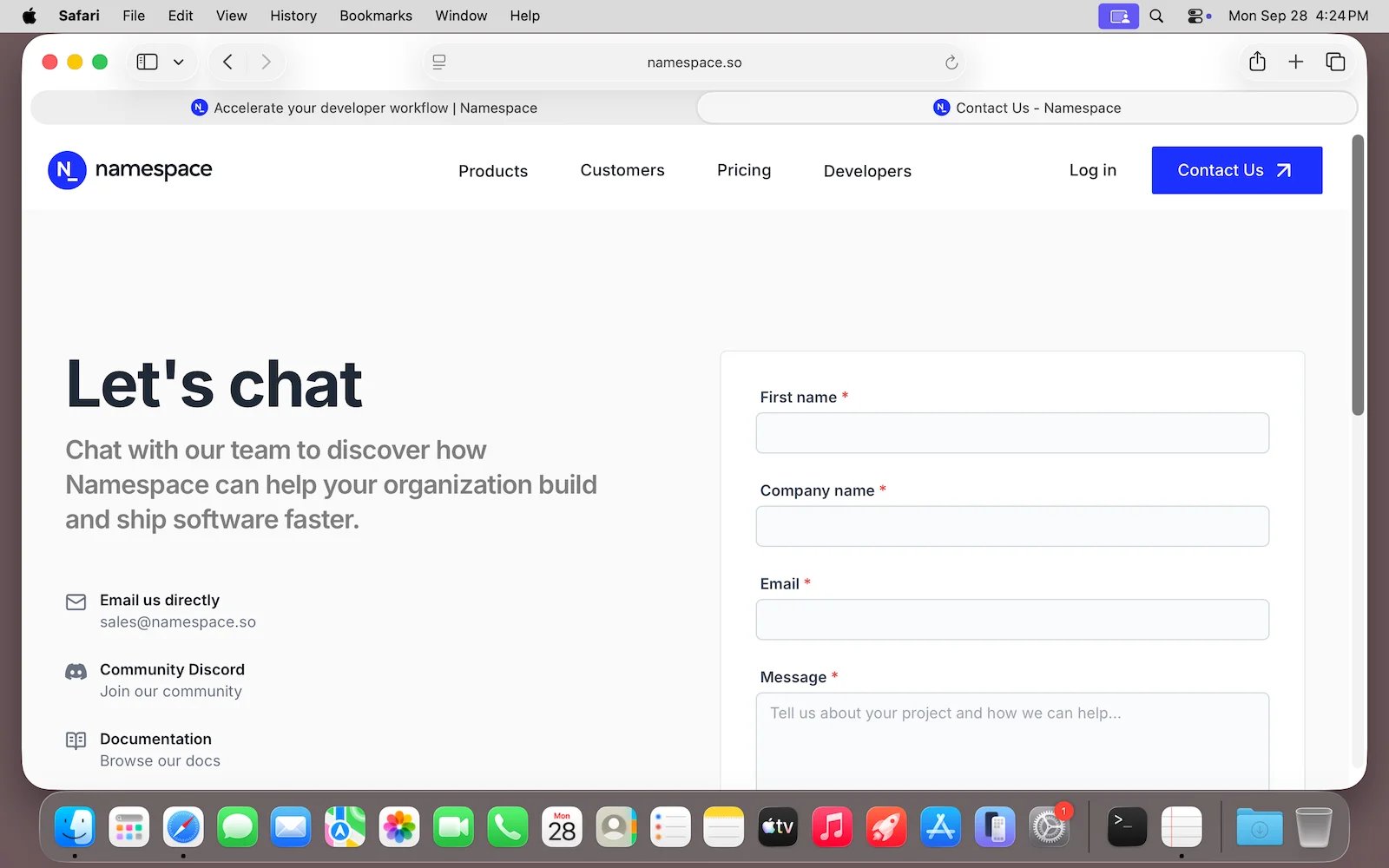
// Left click on the Contact Us button
await devbox.display.click(2200, 280);
// Wait for the page to load and capture a screenshot
await new Promise((resolve) => setTimeout(resolve, 2_000));
const screenshot = await devbox.display.screenshot({ timeoutMs: 60_000 });
await writeFile("contact-us.png", screenshot.png);
client.close();
```
`click()` returns as soon as the click is sent, before the app reacts. Wait briefly, then take a new screenshot to confirm the result before choosing the next action.
Each screenshot takes about a second. `open` returns before an app has finished loading, so wait briefly, or take screenshots until the screen stops changing, before acting on what you see.
## Click the mouse
Click at a point on the screen. Coordinates are in screenshot pixels, with `(0, 0)` at the top-left corner, so a point read from a screenshot can be passed as is.
See [`display.click()`](/docs/reference/typescript-sdk/devbox/display#display-click) for its options, including the mouse button.
```typescript {7} theme={null}
import { createDevboxClient } from "@namespacelabs/sdk/devbox";
const client = createDevboxClient();
const devbox = await client.devboxes.get("my-mac-devbox");
// Left click on the Contact Us button
await devbox.display.click(2200, 280);
// Wait for the page to load and capture a screenshot
await new Promise((resolve) => setTimeout(resolve, 2_000));
const screenshot = await devbox.display.screenshot({ timeoutMs: 60_000 });
await writeFile("contact-us.png", screenshot.png);
client.close();
```
`click()` returns as soon as the click is sent, before the app reacts. Wait briefly, then take a new screenshot to confirm the result before choosing the next action.
 ## Agent loop
Screenshots and clicks combine into a loop that lets an agent work on an app until a task is done:
1. Start the app with `devbox.exec()`, for example `open -a Safari https://namespace.so`.
2. Take a screenshot to capture what the screen shows.
3. Send the screenshot and the task to a vision model, and ask it for the next action.
4. Run the action the model returns, such as a click, then wait for the app to react.
5. Repeat from step 2 until the model reports that the task is done.
The loop below follows that pattern. `decideNextAction()` stands for your model call, for example to the Claude or OpenAI computer use tools. It receives the screenshot and returns the next action: a click, an app or URL to open, or `done`.
```typescript theme={null}
import { createDevboxClient } from "@namespacelabs/sdk/devbox";
type Action =
| { type: "click"; x: number; y: number; button?: "left" | "middle" | "right" }
| { type: "open"; target: string }
| { type: "done" };
// Your model call: sends the task and screenshot, returns the next action
declare function decideNextAction(task: string, screenshot: Uint8Array): Promise;
const sleep = (ms: number) => new Promise((resolve) => setTimeout(resolve, ms));
const client = createDevboxClient();
const devbox = await client.devboxes.get("my-mac-devbox");
const task = "List Devbox docs pages from the sidenav. Expand collapsed sections where needed.";
// 1. Start the app
await devbox.exec(["open", "-a", "Safari", "https://namespace.so/docs"]);
await sleep(2_000);
while (true) {
// 2. Capture the current screen
const screenshot = await devbox.display.screenshot({ timeoutMs: 60_000 });
// 3. Ask the model for the next action
const action = await decideNextAction(task, screenshot.png);
// 4. Stop the loop when done
if (action.type === "done") break;
// 5. Run the action, then give the app time to react
switch (action.type) {
case "click":
await devbox.display.click(action.x, action.y, { button: action.button });
break;
case "open":
await devbox.exec(["open", action.target]);
break;
}
await sleep(2_000);
}
client.close();
```
Tell the model the screen size, 2560 by 1600 pixels, so that the coordinates it returns match the screenshot.
The `open` action shows how to mix commands into the loop. For anything other than clicks, such as launching apps or opening URLs, run a command with [`devbox.exec()`](/docs/devbox/exec). Commands are usually faster and more reliable than working through the screen.
This documentation is built and hosted on [Mintlify](https://mintlify.com), a developer documentation platform.
## Agent loop
Screenshots and clicks combine into a loop that lets an agent work on an app until a task is done:
1. Start the app with `devbox.exec()`, for example `open -a Safari https://namespace.so`.
2. Take a screenshot to capture what the screen shows.
3. Send the screenshot and the task to a vision model, and ask it for the next action.
4. Run the action the model returns, such as a click, then wait for the app to react.
5. Repeat from step 2 until the model reports that the task is done.
The loop below follows that pattern. `decideNextAction()` stands for your model call, for example to the Claude or OpenAI computer use tools. It receives the screenshot and returns the next action: a click, an app or URL to open, or `done`.
```typescript theme={null}
import { createDevboxClient } from "@namespacelabs/sdk/devbox";
type Action =
| { type: "click"; x: number; y: number; button?: "left" | "middle" | "right" }
| { type: "open"; target: string }
| { type: "done" };
// Your model call: sends the task and screenshot, returns the next action
declare function decideNextAction(task: string, screenshot: Uint8Array): Promise;
const sleep = (ms: number) => new Promise((resolve) => setTimeout(resolve, ms));
const client = createDevboxClient();
const devbox = await client.devboxes.get("my-mac-devbox");
const task = "List Devbox docs pages from the sidenav. Expand collapsed sections where needed.";
// 1. Start the app
await devbox.exec(["open", "-a", "Safari", "https://namespace.so/docs"]);
await sleep(2_000);
while (true) {
// 2. Capture the current screen
const screenshot = await devbox.display.screenshot({ timeoutMs: 60_000 });
// 3. Ask the model for the next action
const action = await decideNextAction(task, screenshot.png);
// 4. Stop the loop when done
if (action.type === "done") break;
// 5. Run the action, then give the app time to react
switch (action.type) {
case "click":
await devbox.display.click(action.x, action.y, { button: action.button });
break;
case "open":
await devbox.exec(["open", action.target]);
break;
}
await sleep(2_000);
}
client.close();
```
Tell the model the screen size, 2560 by 1600 pixels, so that the coordinates it returns match the screenshot.
The `open` action shows how to mix commands into the loop. For anything other than clicks, such as launching apps or opening URLs, run a command with [`devbox.exec()`](/docs/devbox/exec). Commands are usually faster and more reliable than working through the screen.
This documentation is built and hosted on [Mintlify](https://mintlify.com), a developer documentation platform.